


Mark as favorites. Mark items as favorites to quickly access them later and never delete them.
A powerful clipboard history for advanced Mac users. Keep, organize, find, and reuse everything you copy.
macOS 13.0+
|


4871+ active users
★ ★ ★ ★ ★
ClipBook is an incredible app with an incredible UI and I hope to use it a lot more.
Tad Jimenez
★ ★ ★ ★ ★
Thanks for making ClipBook! It really is amazing -- both the product and the website.
Yuvraj Sarda
★ ★ ★ ★ ★
I've been using your app and to be honest, it's great! Thank you very much.
Mauricio
Unlimited clipboard history
Keep everything you copy
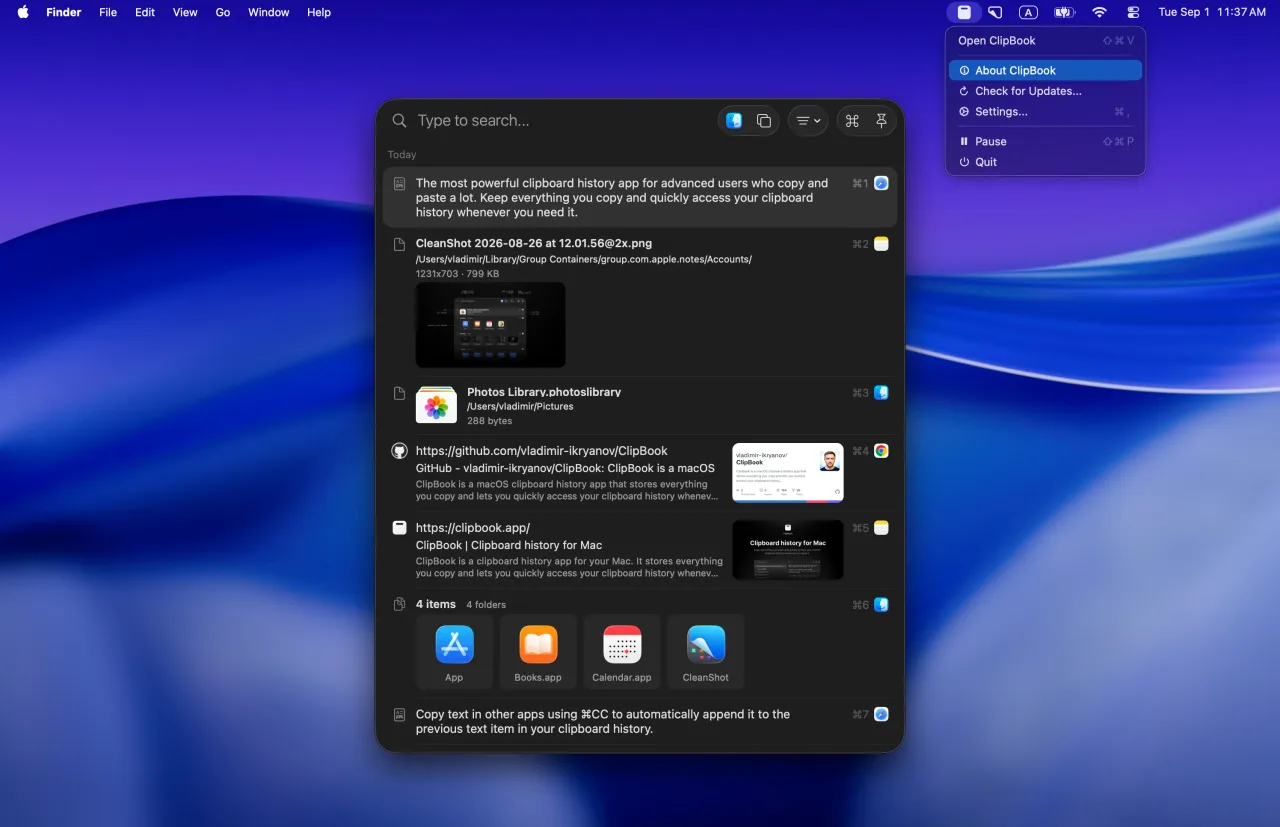
ClipBook runs in the background and remembers everything you copy, so you can easily find it and copy it again or paste directly into the current active application.
Paste to active app
Press ↵ or double click the item to paste selected item directly to the currently active application.
Copy & Merge
Copy text in other apps using ⌘CC to automatically append it to the previous text item in your clipboard history.
Paste in sequence
Paste items one by one using ⌃V without opening the clipboard history window. Each paste automatically advances to the next history item.
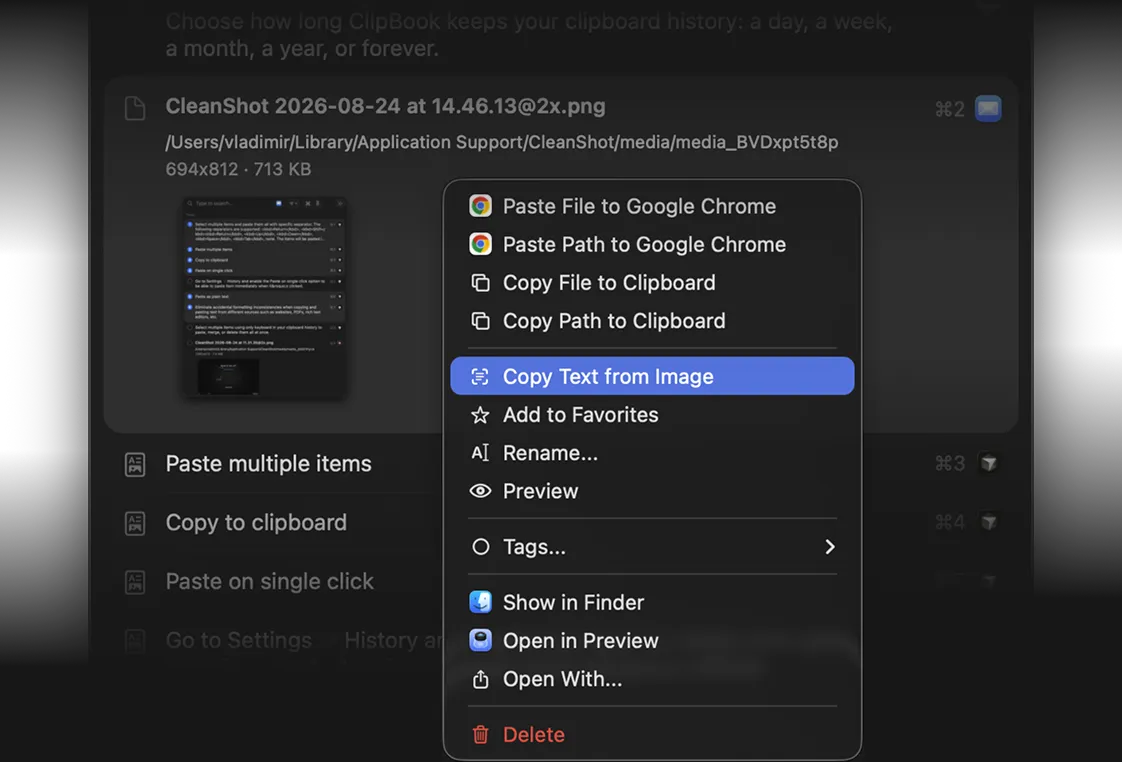
Copy text from image
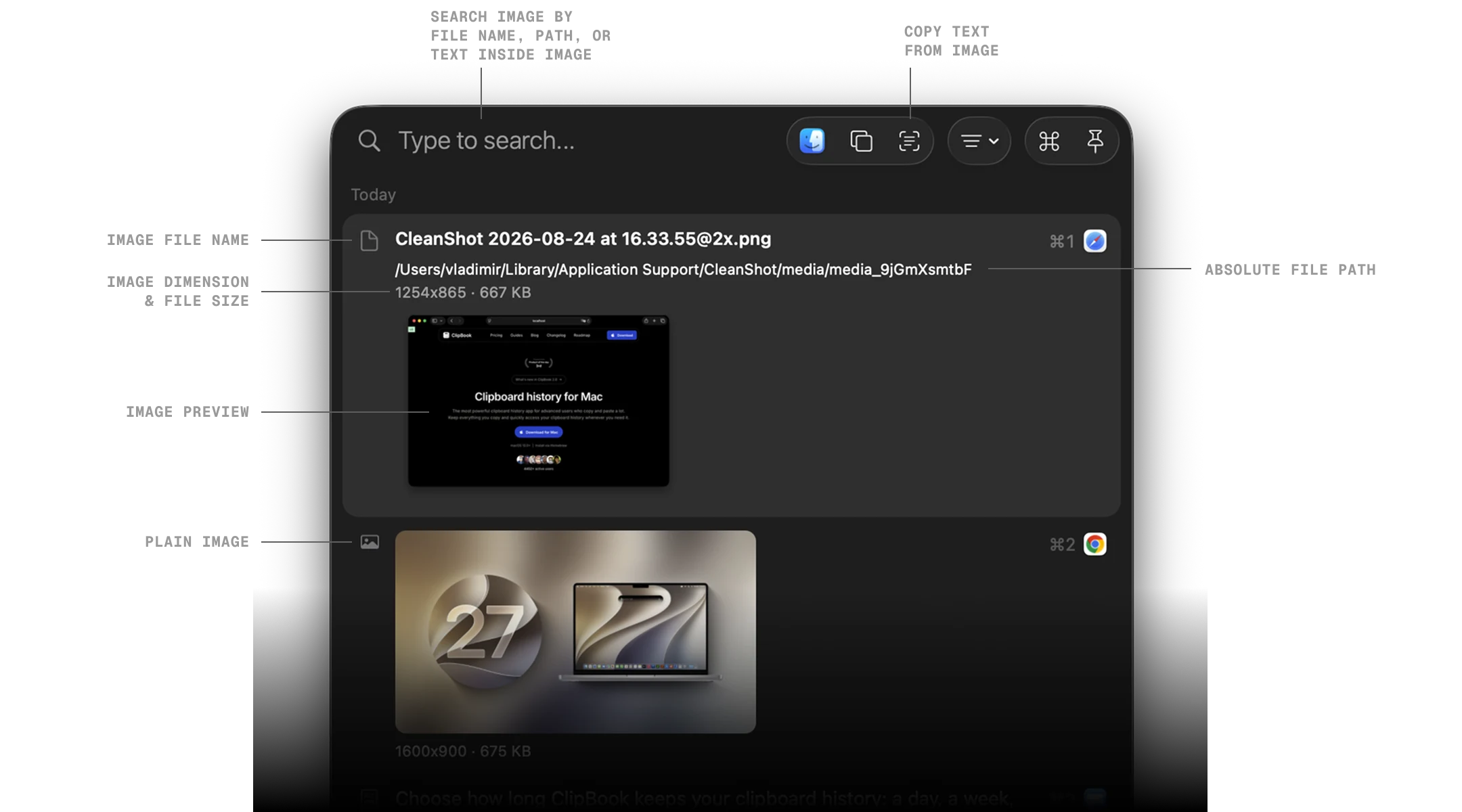
If an image or image file in your clipboard history has text, you can extract and copy it to system clipboard.
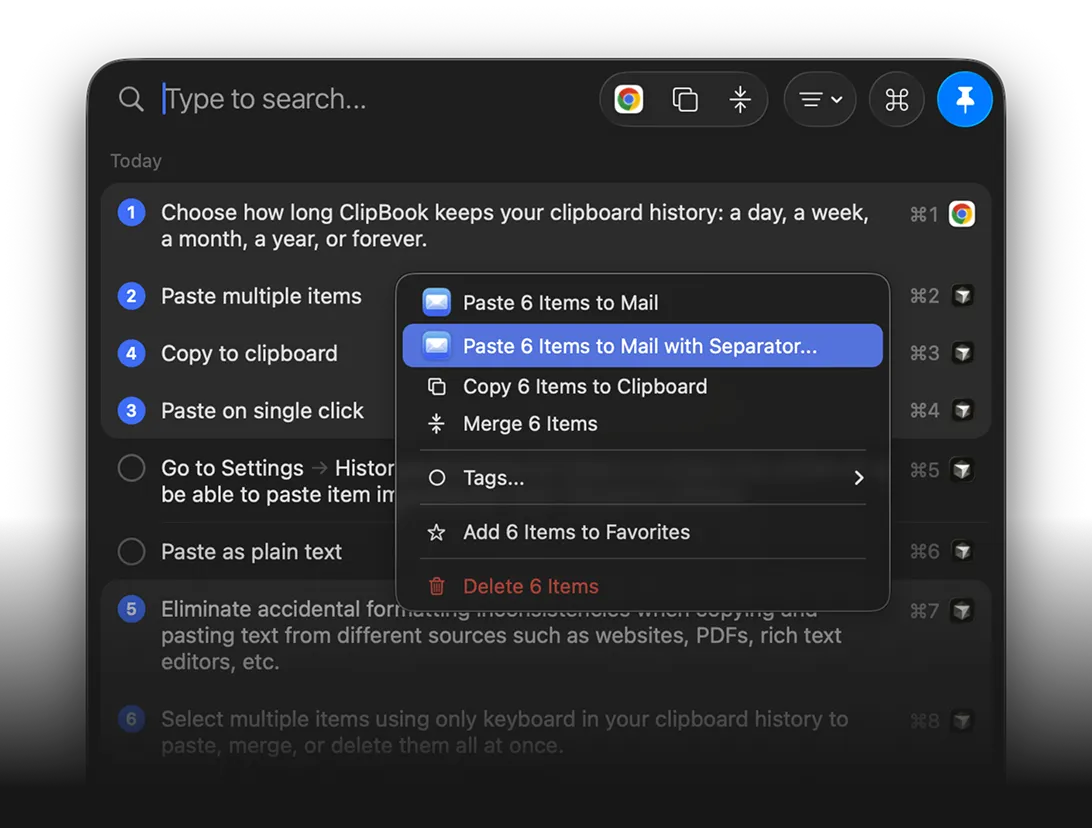
Paste multiple items
Select multiple items and paste them all with specific separator. The following separators are supported: Return, ShiftReturn, Up, Down, Space, Tab, none. The items will be pasted in the order they were selected.
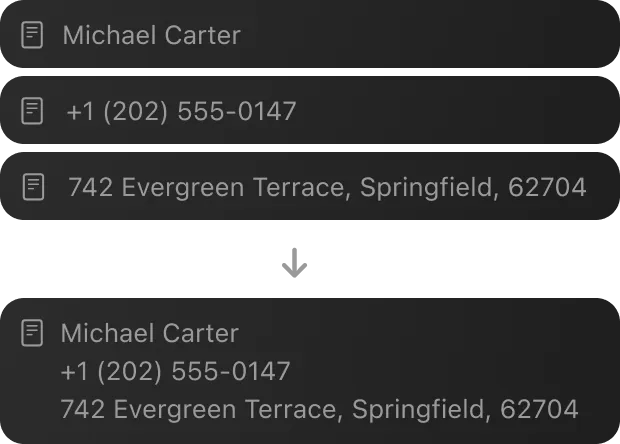
Merge text items
Select multiple text items such as text, links, emails, colors, and merge them into a single item.
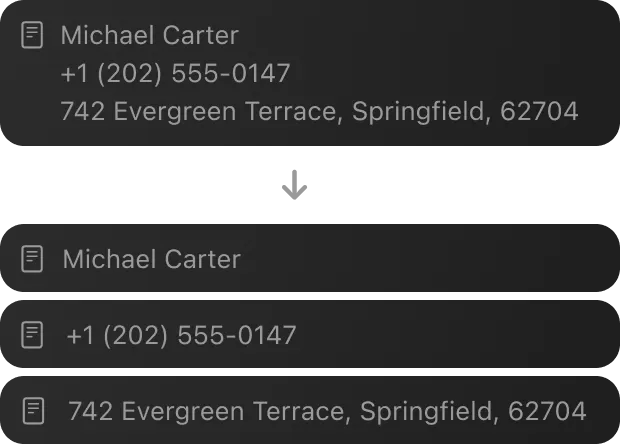
Split a text item
Split a multi-line text item into separate items to paste each line individually.
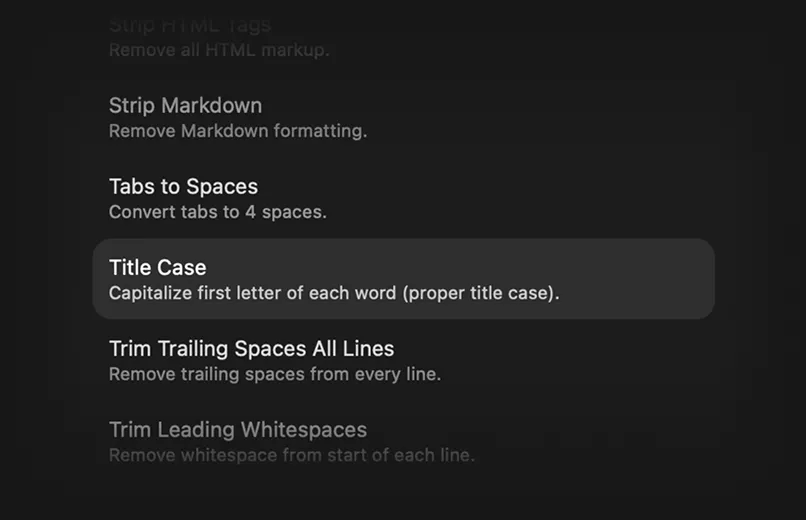
Transform text
Apply any of the 78 text transformation options to the text items.
Open file with external apps
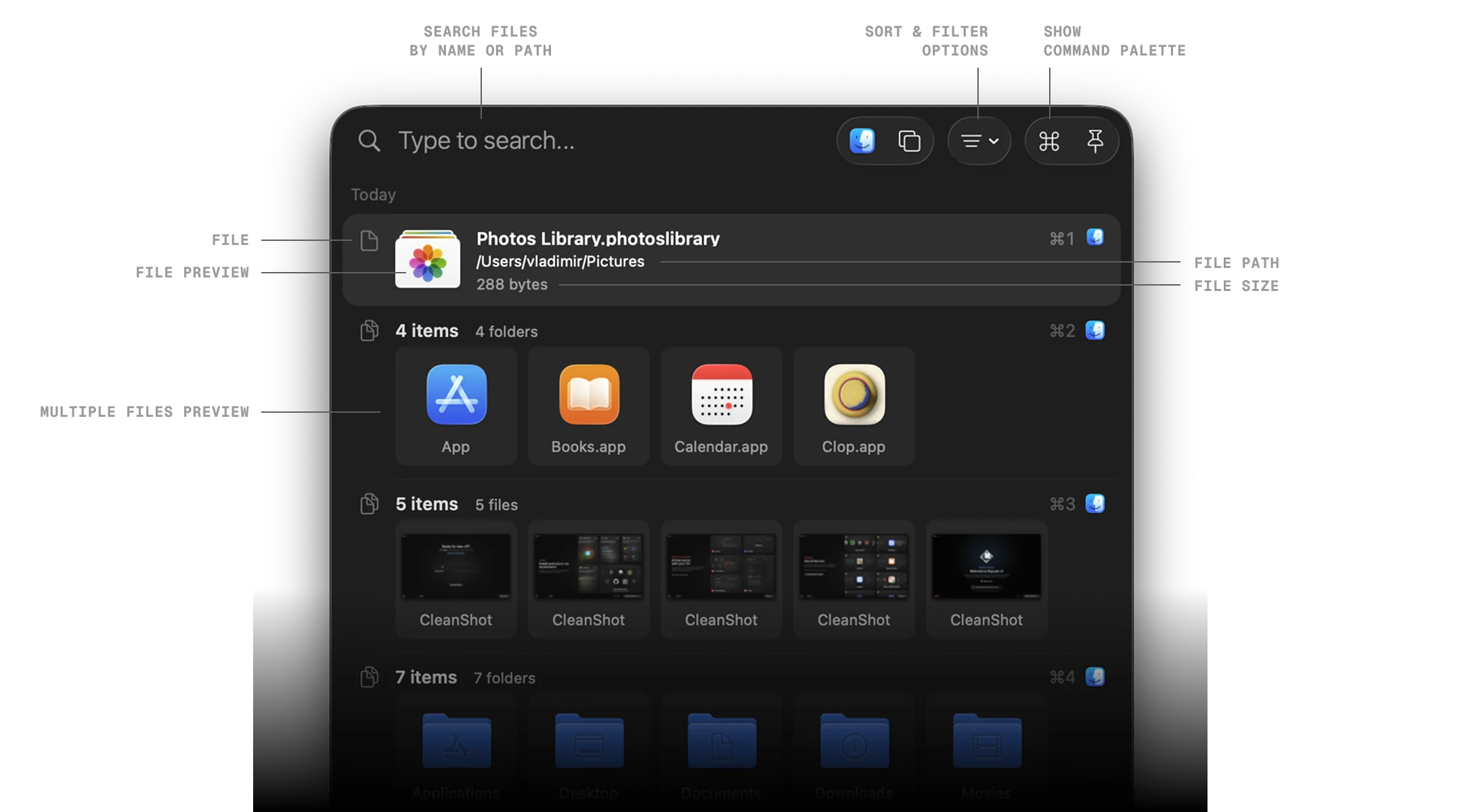
Open file items from your clipboard history in the default or any other application installed on your Mac.
Unlimited clipboard history
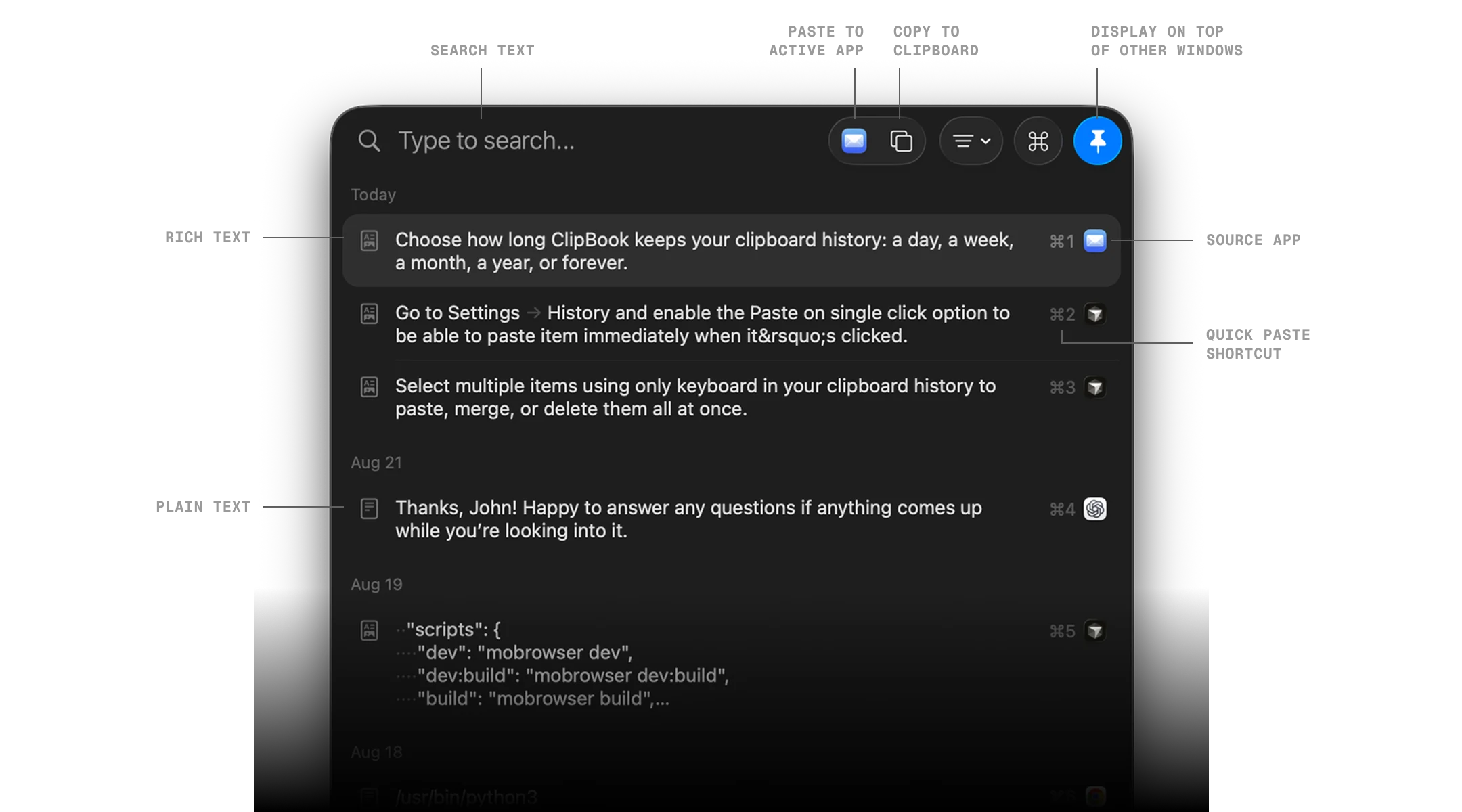
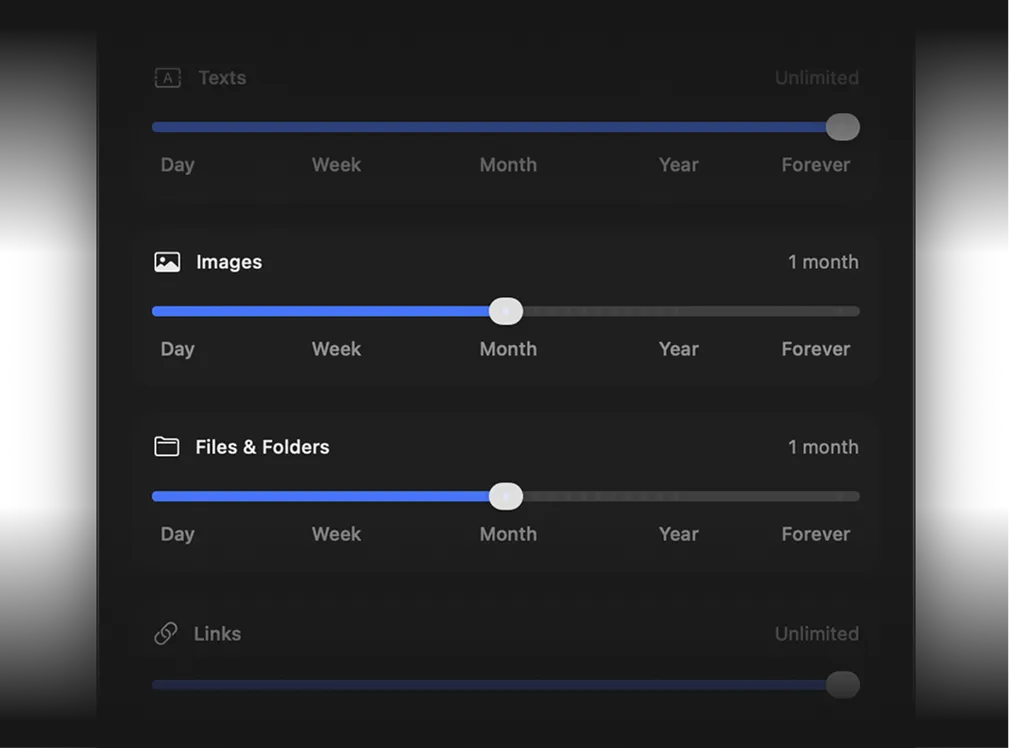
Choose how long ClipBook keeps different types of items: a day, a week, a month, a year, or forever.
The favorite items and items with tags can be stored forever.
Paste as plain text
Eliminate accidental formatting inconsistencies when copying and pasting text from different sources such as websites, PDFs, IDEs, etc.
Copy to clipboard
You can copy any item back to macOS system clipboard using ⌘C if you don't want to paste it to the active app.
Paste on single click
Go to Settings → History and enable the Paste on single click option to be able to paste item immediately when it’s clicked.
Multiple selection
Select multiple items using only keyboard in your clipboard history to paste, merge, or delete them all at once.
Quick paste
Paste any of the first 9 items from the history using the ⌘1..9 keyboard shortcuts. Hide the shortcuts if necessary.
Import & export history
Export your clipboard history to a file and import it on another Mac. Your history moves with you.
Open link in web browser
If your clipboard history item represents a link/URL, you can open it in your system web browser app using ⌘B.
Multiple screens
ClipBook remembers its position and size for each screen. By default, it's displayed on the active screen.
Organize
Organize your clipboard history
Keep your clipboard history organized with favorites, tags, custom names, editable content, and flexible sorting.
Pin favorits to top. Display favorite items at the top of the history list.
Assign tags. Assign tags to the items to quickly find them later and filter the history by tag.
Set custom name. Give the meaningful name to any history item to recognize and find it faster.
Edit text content. Edit content of any text item including links, colors, email addresses, etc.
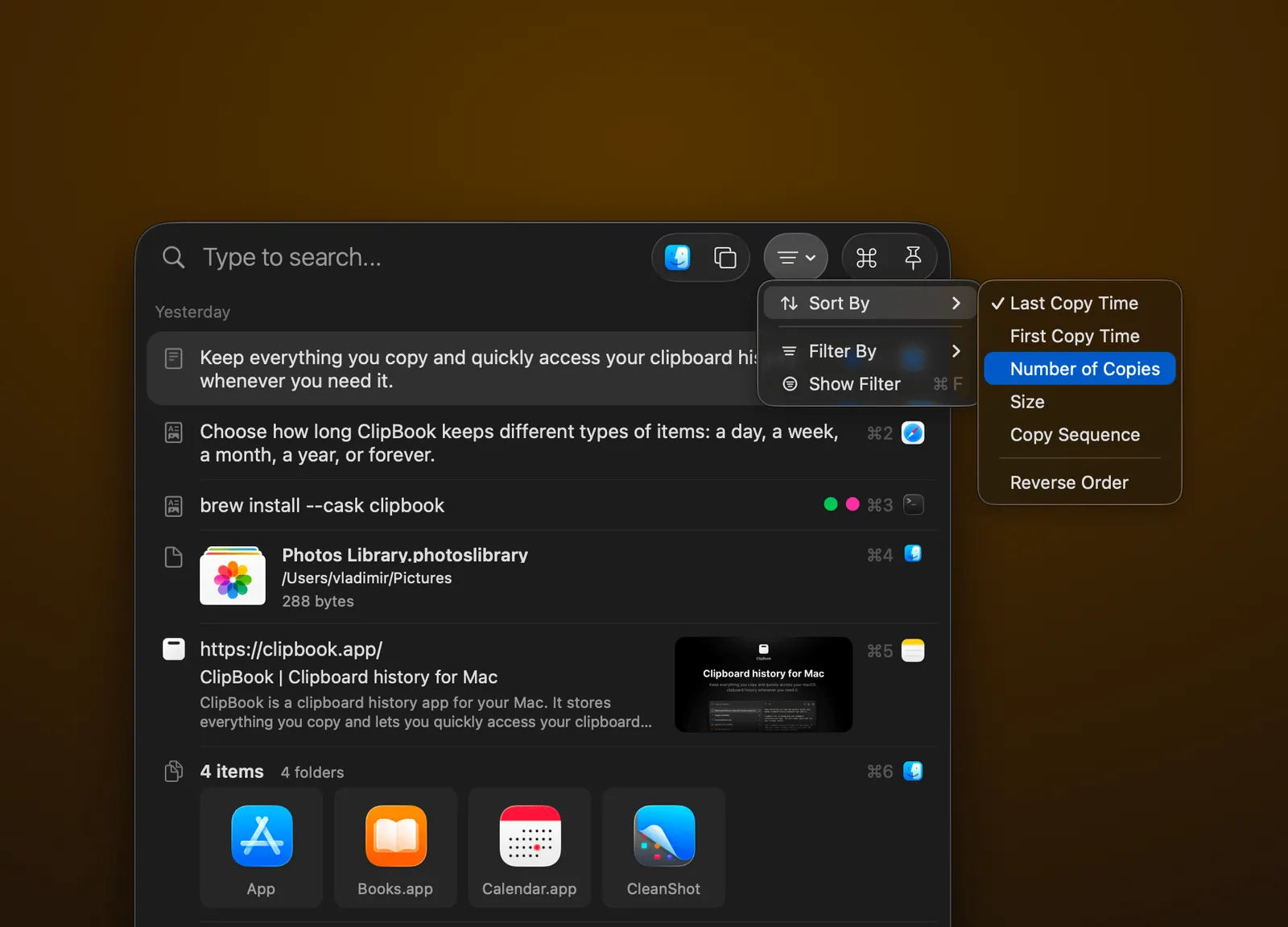
Sort history. Sort by last copy time, first copy time, number of copies, size, copy sequence.
Quick search
Find anything you copied
Start typing to find what you need. Find text in the images, the link titles and details. Find the history items by names.
Search text. Find copied text by typing any word or phrase it contains.
Search text in images. Find images by text inside them.
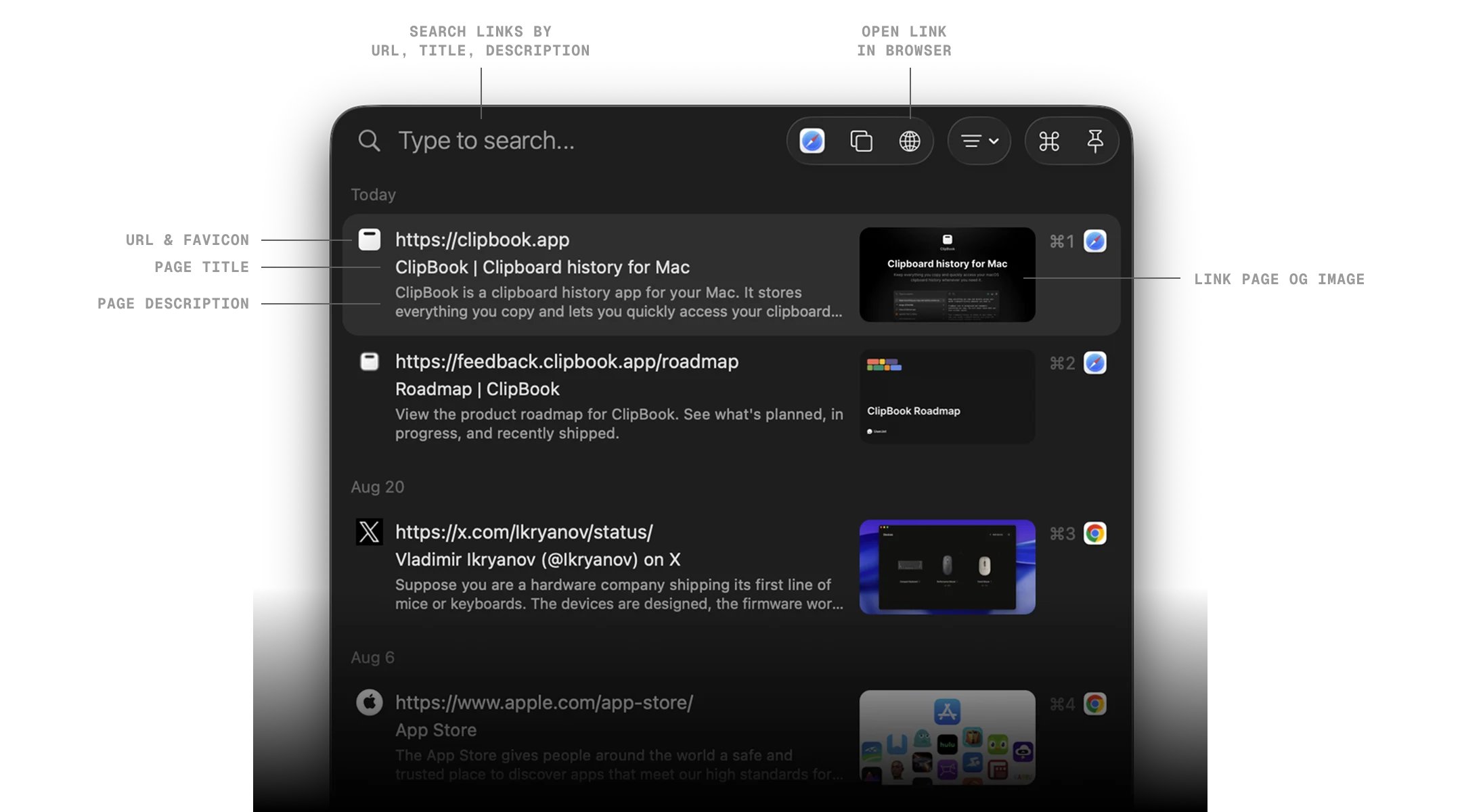
Search links. Search copied links by their URL, page title, or details.
Search by name. Find any clipboard history item using its custom name.
Filter history. Filter clipboard history by type, tags, or source app.
Customize
Make it work the way you want
ClipBook is highly customizable. You can configure its user interface, behavior, color theme (dark, light, system), and keyboard shortcuts to fit your needs.
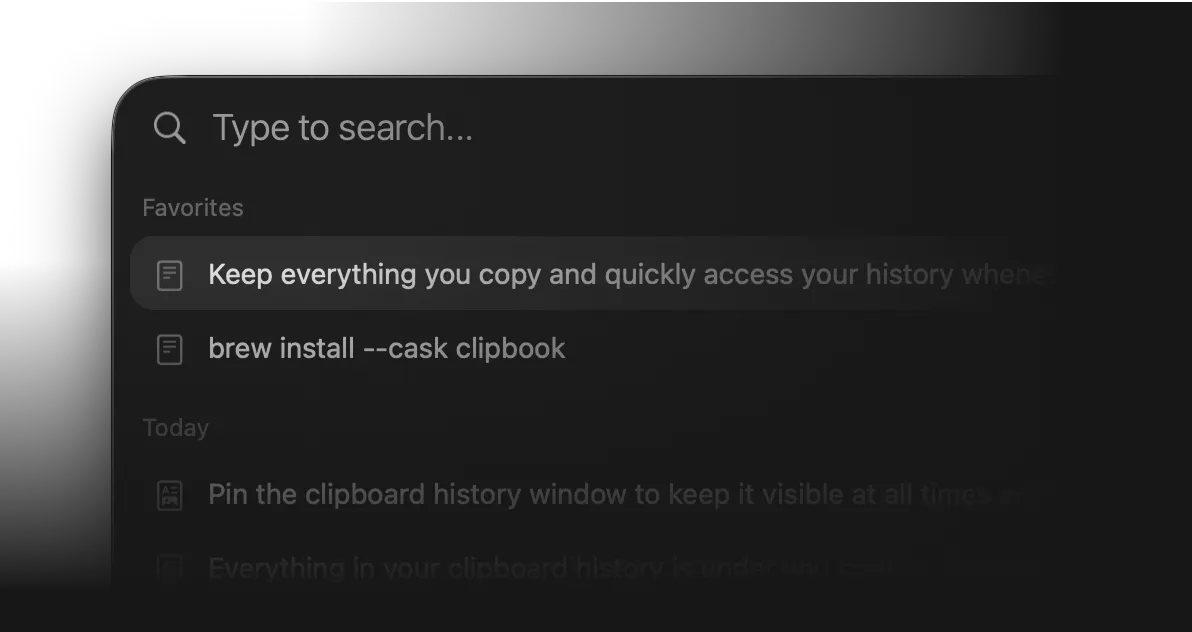
Pin favorites to top
Display your favorite items at the top of the clipboard history list for quick access. Perfect for frequently used items.
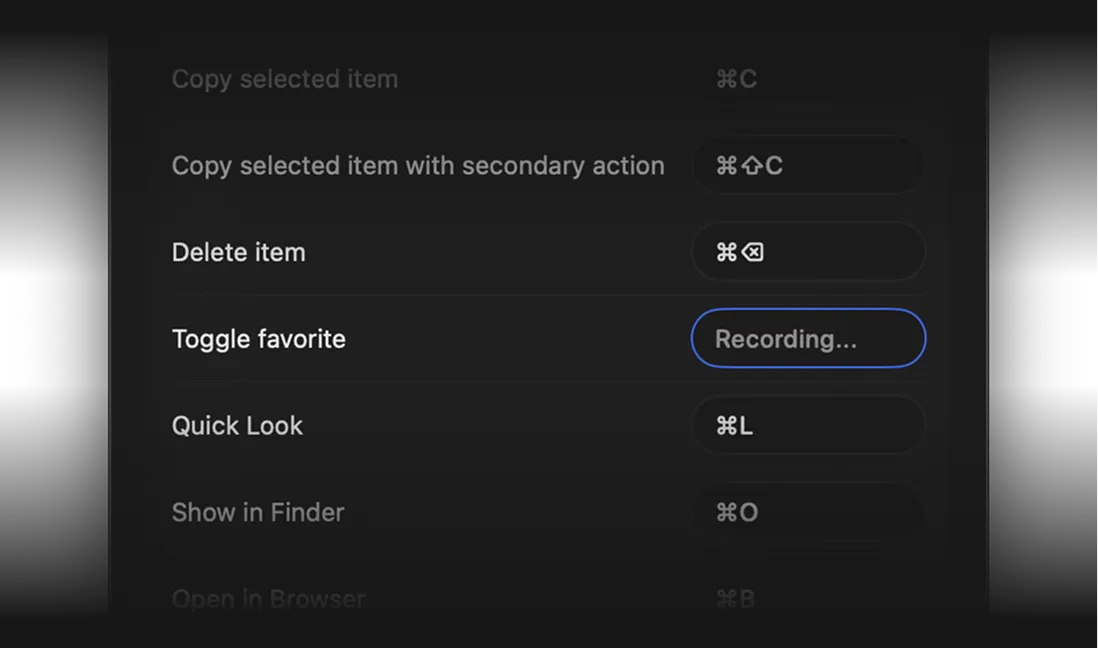
Customize keyboard shortcuts
You can customize every keyboard shortcut to fit your workflow.
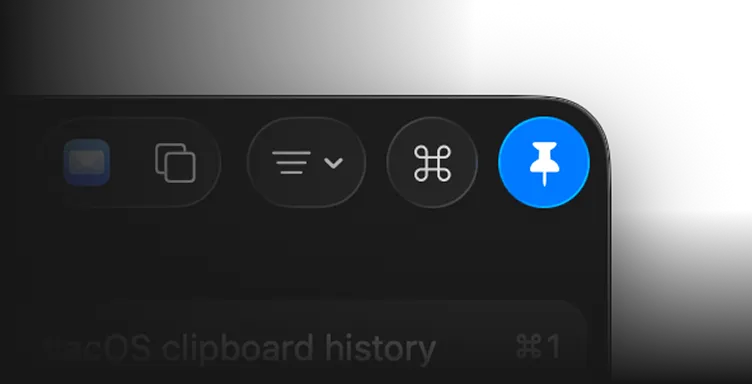
Pin window
Pin the clipboard history window to keep it visible at all times on top of other windows.
Play sound on copy
Every time you copy something and it's saved to the clipboard history, a sound will be played to notify you.

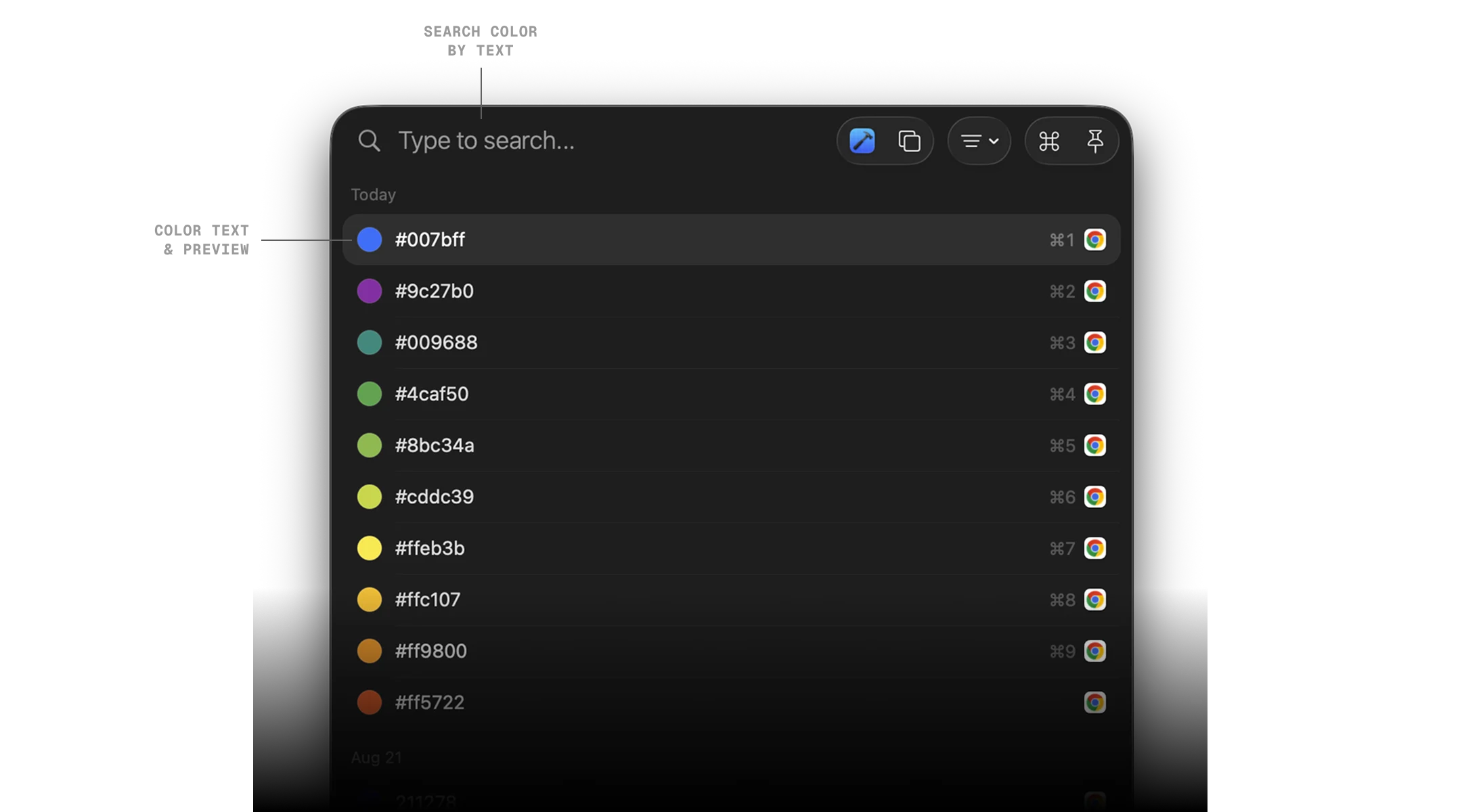
Treat digits as colors
Configure whether copied hex digits should be recognized and previewed as colors in your clipboard history.

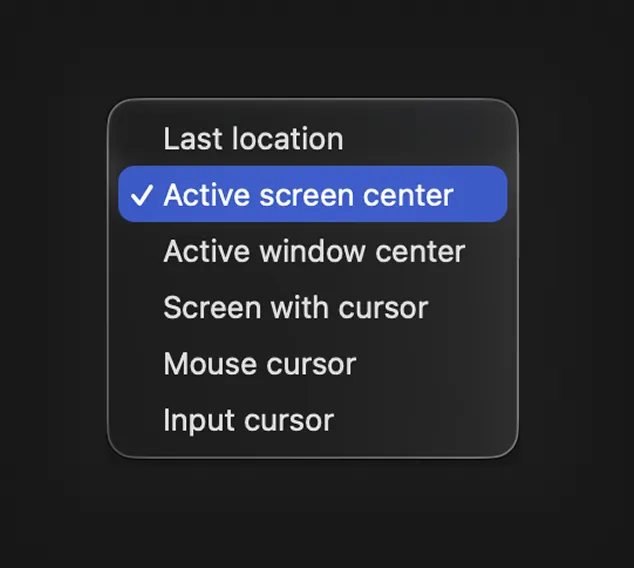
Window position
Choose where the clipboard history window should be displayed.
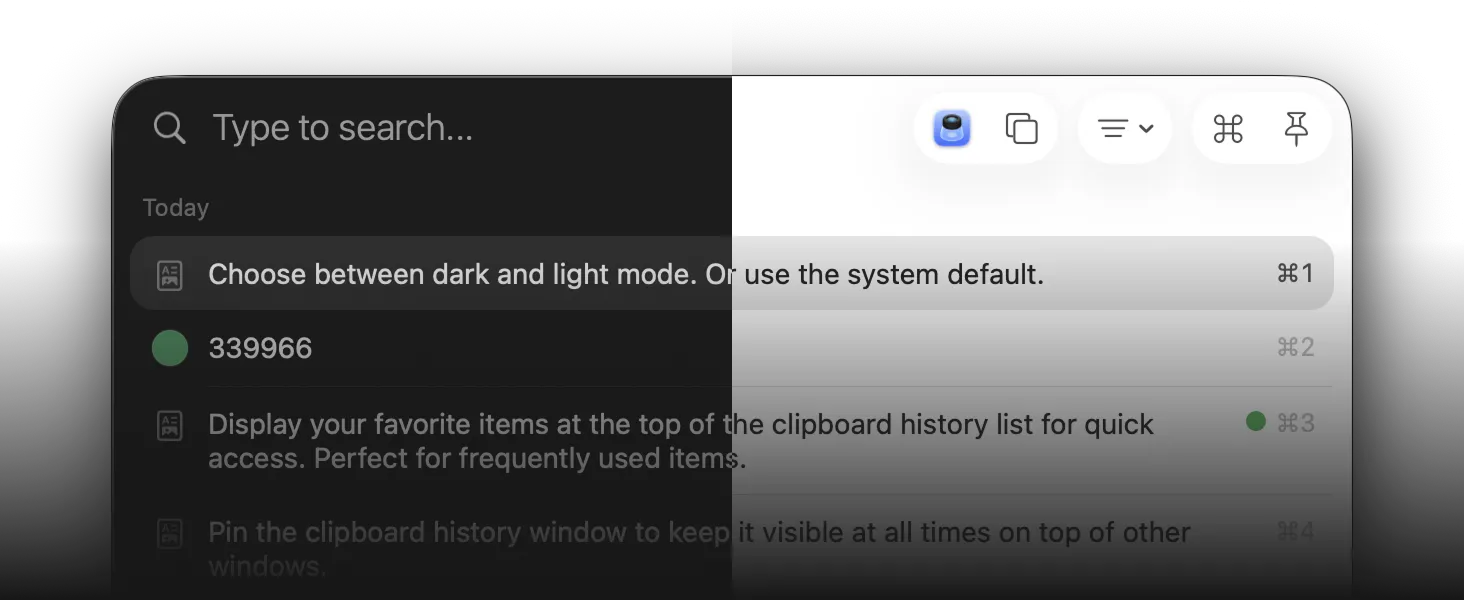
Appearance
Choose between dark and light mode. Or use the system default.
Show history at startup
Automatically show the clipboard history window when ClipBook is launched.
Hide icon in menu bar
ClipBook runs in the background and displays an icon in the menu bar. You can hide it anytime.
Launch at login
You can configure ClipBook to launch automatically when you log in to your Mac.
Automatic updates
With enabled automatic updates, you will always have the latest stable version of ClipBook.
Localization
Multiple languages
ClipBook is available in multiple languages including English, English UK, Spanish, Italian, German, Japanese, Chinese, and Portuguese.
🇺🇸🇬🇧🇪🇸🇮🇹🇩🇪🇯🇵🇨🇳🇵🇹
Privacy & Security
Your data is your data
All data is securely stored locally on your Mac computer and never leaves it.
- No cloud
- No built-in analytics
- No app metrics
- No tracking
Learn more→
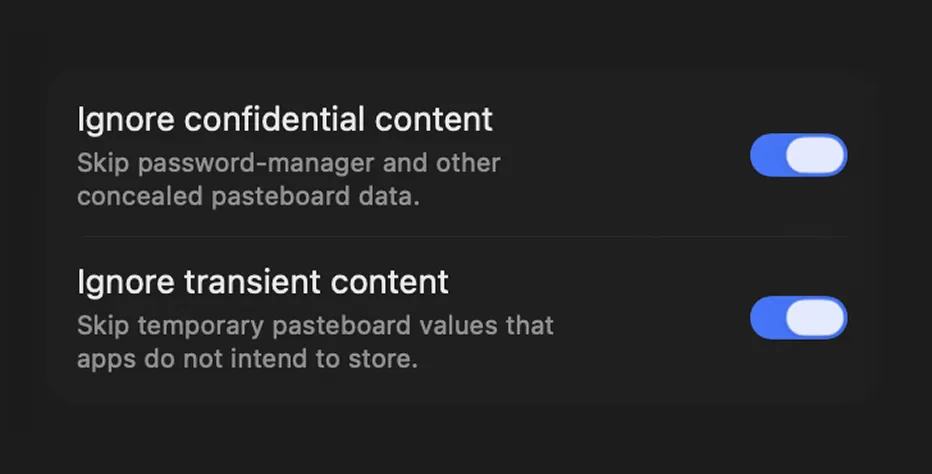
Ignore confidential content
Configure whether you want to save passwords, temporary placed data to the clipboard, and other sensitive data copied to the clipboard.
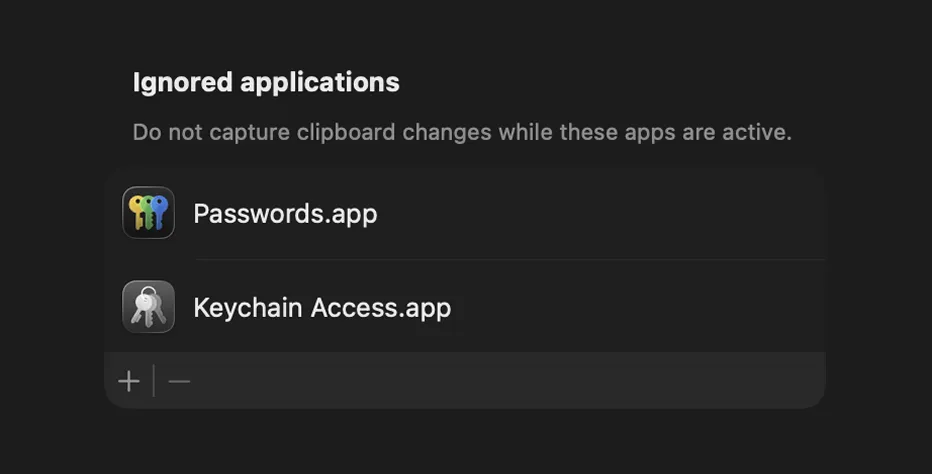
Ignore applications
Do not save content copied from specific app. You can add any app to the list of ignored apps.
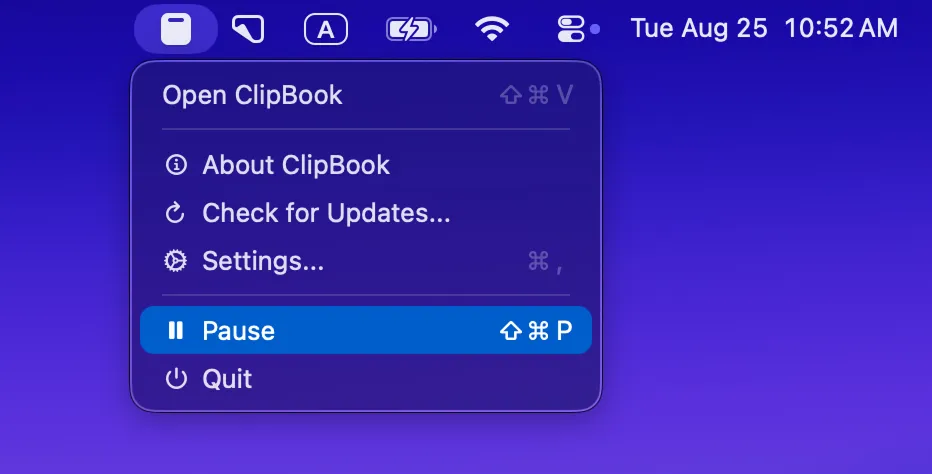
Pause/resume
Pause ClipBook when you don't want it to remember everything you copy. Assign a global keyboard shortcut to quickly pause/resume ClipBook.
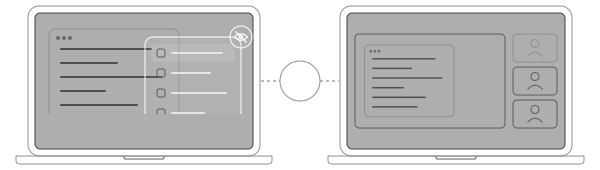
Hidden during screen sharing
ClipBook stays visible to you, but is left out of screen shares, recordings, and screenshots. Open it mid-demo or on a call, and nobody watching sees what you copied.
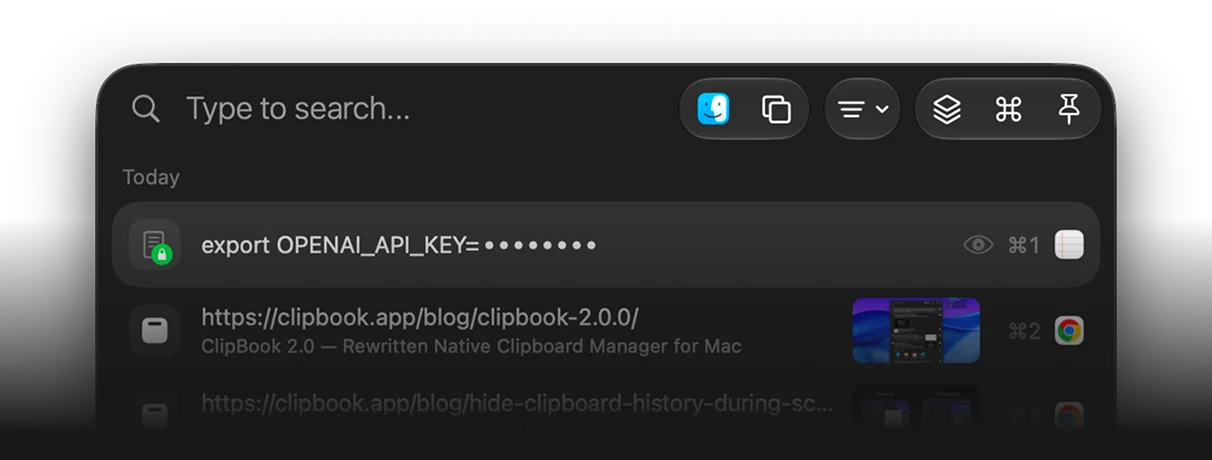
Mask passwords & secrets
ClipBook spots passwords, API keys, access tokens, and card numbers in what you copy and masks them in your history. One click or ⌘U reveals them, and pasting still works exactly as before.
Clear entire history on app quit or Mac reboot
You can configure ClipBook to clear the entire clipboard history when the app quits or your reboot your Mac.
Open source
The source code of ClipBook is public. You can check it and make sure it's safe, secure, and it doesn't send any data to external web servers. Your data never leaves your Mac.
Open GitHub→
It's all about time
Copy and paste more efficiently. Save time and boost your productivity.
The standard macOS clipboard stores only one item, making it easy to lose important content.
If you copy and paste on Mac frequently and find yourself searching for previously copied text or switching between apps just to paste, ClipBook is what you need.
With ClipBook, you can save your entire clipboard history, quickly access and find past copies, and copy or paste it directly to the active app.
Try it once. You will love it. Read how to copy and paste on Mac efficiently or browse the how-to guides.
Use cases
A better clipboard for everyone
Save time and reduce interruptions in your daily workflows.
Software Developers
Copy and paste on your Mac code snippets, examples, API references, terminal commands, stack traces, or log messages to your clipboard history for Mac in a row and quickly access them when needed.
Technical Writers
Quickly access all the copied text, URLs, research notes, citations, ChatGPT suggestions, and references during your writing sessions. Write more in less time. Focus on producing high-quality documentation.
Support Agents
Keep standard responses for common issues, reference customer information or previous interactions. Quickly access the needed information during troubleshooting sessions. Reduce response time and provide more efficient support to customers.
Sales Representatives
Reference past conversations, agreements, product specifications, pricing details, shipping information, return policies, case studies, or customer testimonials during sales presentations or negotiations. Streamline your proposal creation process and increase sales effectiveness.
Lawyers
Store and access contracts, agreements, legal citations, standard clauses, statutes, boilerplate language, or case law excerpts during legal research. Minimize repetitive typing. Save time and improve your research process and accuracy.
Marketing Specialists
Remember and reference URLs, hashtags, subject lines, email templates, image captions, video links, blog post drafts. Copy and paste text and images. Improve efficiency, creativity, and effectiveness in your marketing efforts.
Designers
References frequently used color codes, hex values, or font names when creating designs. Copy and paste text and images on your Mac, CSS stylesheets, HTML templates. Quickly access your clipboard history. Enhance your creativity and streamline the design process.
Students
Copy information from various sources when conducting research for assignments or working on your academic tasks. Reduce distractions and focus more on your studies, rather than wasting time re-copying information.
Teachers
Access all the copied articles, lecture notes, or worksheets from various sources when preparing lesson materials. Copy and paste multiple texts at once. Paste common comments and corrections when providing feedback to students.
Pricing
One price.
Lifetime access.
One-time payment. No subscription.
Get lifetime access to ClipBook on your Mac.

ClipBook app for Mac
$9.99
$14.99
will be the price after the increase
Price is going up in October 2026
- One-time payment
- 14-day money-back guarantee
- Lifetime updates
- Lifetime support
- Native macOS app
- 1 Mac device license
Secure checkout by Paddle. Taxes may apply.
FAQ
ClipBook is a powerful clipboard history app that runs in the background that automatically saves everything you copy on your Mac, making it easy to find, search, and reuse previously copied content. Read how to copy and paste on Mac efficiently to see it in action.
Your clipboard history is stored locally on your Mac. ClipBook does not use cloud sync, user accounts, analytics, or server-side clipboard storage. The source code is open, so you can verify it yourself.
Yes. ClipBook can detect potentially sensitive content, such as passwords and one-time verification codes, and avoid saving them to your clipboard history. You can also ignore confidential content and configure exclusion rules for specific applications.
Yes. You can temporarily pause clipboard capture at any time. While paused, newly copied content will not be saved to your clipboard history until you resume capture.
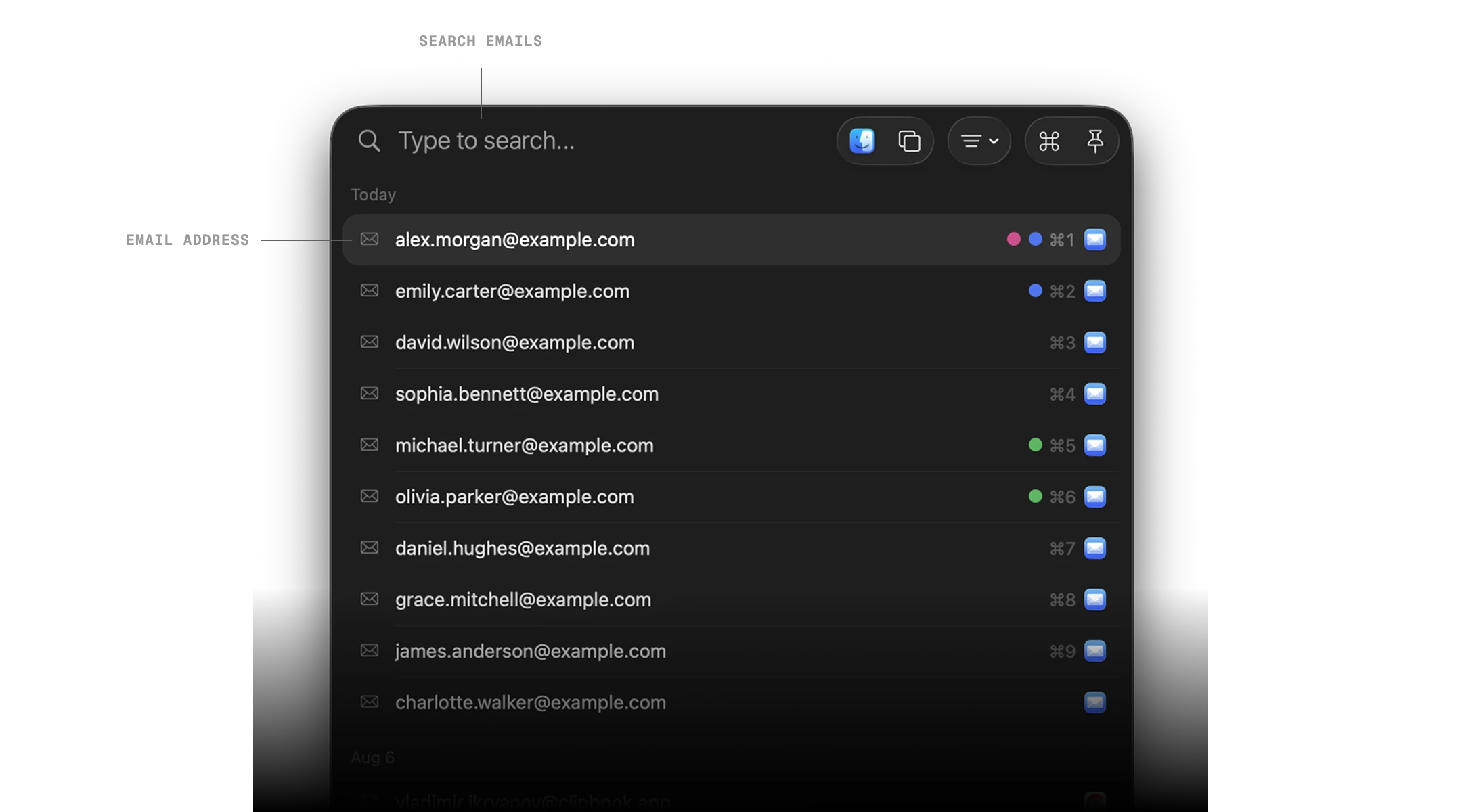
Yes. ClipBook provides fast search across your clipboard history, allowing you to quickly find text, text in images, links with specific URLs, titles and descriptions, files and folders, colors, email addresses, etc.
ClipBook supports many common clipboard formats, including:
- Plain text
- Rich text (RTF)
- HTML
- Links and URLs
- Email addresses
- Images
- Colors
- Files and folders
Support for additional clipboard formats may vary depending on the application that created the content.
ClipBook is free to try for 5 days, with every feature unlocked. The trial starts automatically the first time you launch the app — there's no credit card, no account, and no sign-up.
When the trial ends, your clipboard history stays on your Mac. Nothing is deleted and nothing is uploaded anywhere. ClipBook simply stops opening your history until you buy a license and activate it — then everything is right where you left it.
No. ClipBook is a one-time purchase, not a subscription. Your license includes lifetime software updates and lifetime support, with plans available for one, two, or five Mac devices.
Yes. Every ClipBook purchase is covered by a 14-day money-back guarantee, no questions asked. If ClipBook isn't for you, email vladimir.ikryanov@clipbook.app within 14 days of your purchase and I'll refund you in full. See our refund policy for details.
The biggest difference is the price model: ClipBook is a one-time purchase of $9.99, while Paste is a subscription at $29.99 per year. ClipBook keeps your clipboard history only on your Mac, with no account and no cloud, and adds text tools such as merging, splitting, transformations and multi-paste with separators. Paste offers iCloud sync and iPhone and iPad apps, which ClipBook doesn't have. See the full ClipBook vs Paste comparison.
Download the DMG, drag ClipBook to your Applications folder, and launch it. If you prefer the terminal, you can install ClipBook via Homebrew with brew install --cask clipbook. ClipBook supports Apple Silicon and Intel Macs.
With love
Get it. Try it. Buy it if you like it.
I hope you enjoy using ClipBook and it saves you a few hours each week. If you have any questions or feedback, please contact me.

Founder of ClipBook

Free download
Never lose what you copy
Keep your copy history, organize it, quickly find what you need and paste it directly to the active app.
Download for Mac
Keyboard-first · Native app · One-time purchase · Lifetime updates