Share your screen, not your clipboard: ClipBook now hides history during screen sharing
ClipBook now stays visible to you but out of screen shares, recordings and screenshots. You can open it mid-demo or on a call, and nobody watching sees what you copied.
Picture this: you’re sharing your screen on a team call, you open ClipBook to grab a snippet, and there’s your whole clipboard history on display. The private message you copied an hour ago. A client’s email address. The token you pasted into your terminal this morning. Everyone on the call can see it.
We’ve all had that moment of panic, so I fixed it. Starting today, ClipBook hides during screen sharing, and it’s on by default.
Visible to you, invisible to everyone else
ClipBook’s history window, preview and Command Palette now stay on your screen as usual, but they’re left out of screen shares, screen recordings and screenshots. That means you can open ClipBook mid-demo, during a pair-programming session or on a client call, and nobody else sees what you’ve copied. To your audience, it’s as if ClipBook isn’t there at all. You get your full history; they get your presentation.
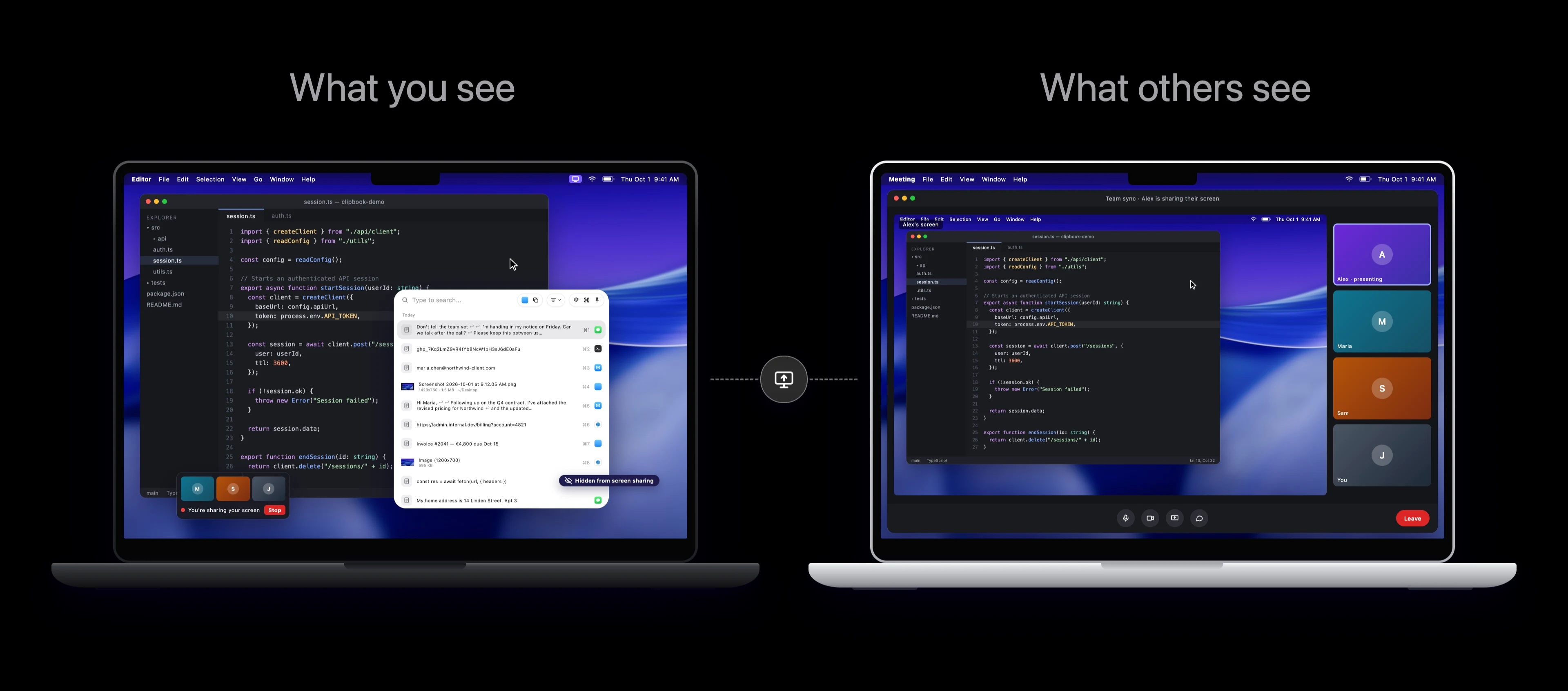
There’s nothing to set up and nothing to remember. You don’t have to close ClipBook before you hit Share, and you don’t have to worry about a screenshot catching your history by accident.
When you do want ClipBook on screen
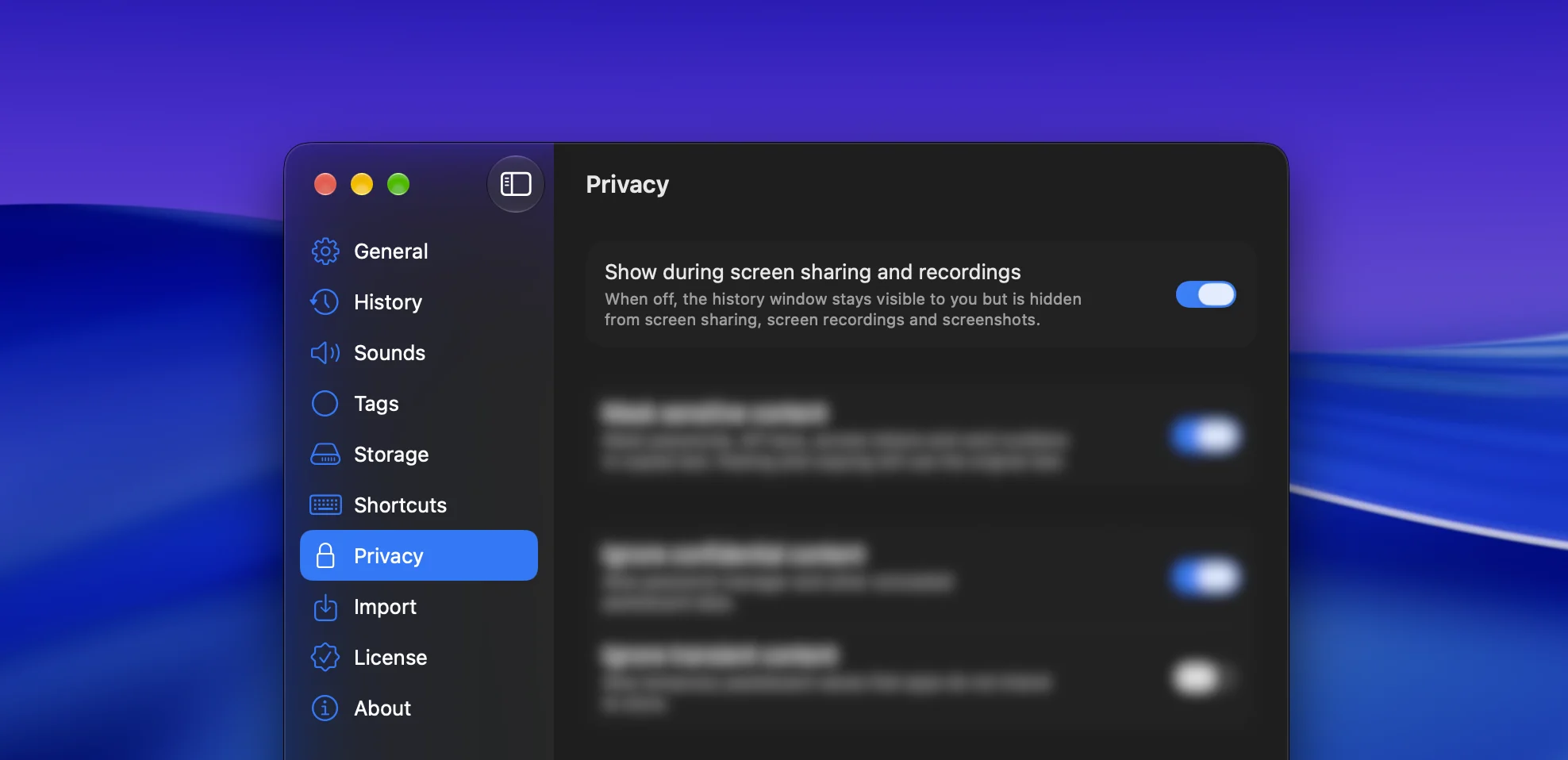
Sometimes showing ClipBook is the point, like when you’re recording a tutorial or walking a teammate through your workflow. For those moments, open Settings → Privacy and turn on Show during screen sharing and recordings. Turn it off again when you’re done, and ClipBook goes back to staying out of sight.
Get it now
Hide during screen sharing is available today in ClipBook 2.3.0 and later. Update to get it, or download ClipBook if you’re new.
Happy (and private) presenting!