Keep your secrets secret: ClipBook now hides passwords, API keys and tokens
ClipBook now spots passwords, API keys, access tokens and card numbers in what you copy and masks them in your history. One click or ⌘U reveals them, and pasting still works exactly as before.
Your clipboard sees everything. The API key you just grabbed from a dashboard, the password you pulled from your password manager, the card number you pasted into a checkout form. ClipBook remembers all of it, which is exactly why you love it, and exactly why it can feel a little exposed.
Picture this: a colleague leans over to look at something on your screen just as you open ClipBook, and there’s your production token sitting in plain sight. Or a password you copied an hour ago, right at the top of the list. We’ve all had that moment of panic, so we fixed it.
Today I’m glad to introduce that ClipBook now spots passwords, API keys, access tokens, card number and even passwords in the text you copy, mark them as sensitive and mask them in your history. It’s on by default, so you’re protected the moment you update.
Passwords and secrets, hidden in plain sight
ClipBook automatically spots passwords, API keys, access tokens and card numbers in the text you copy, and masks them for you. In your history and in the preview, they show up as a row of dots. Their type icon gets a small green lock, so you can tell at a glance which items are protected.
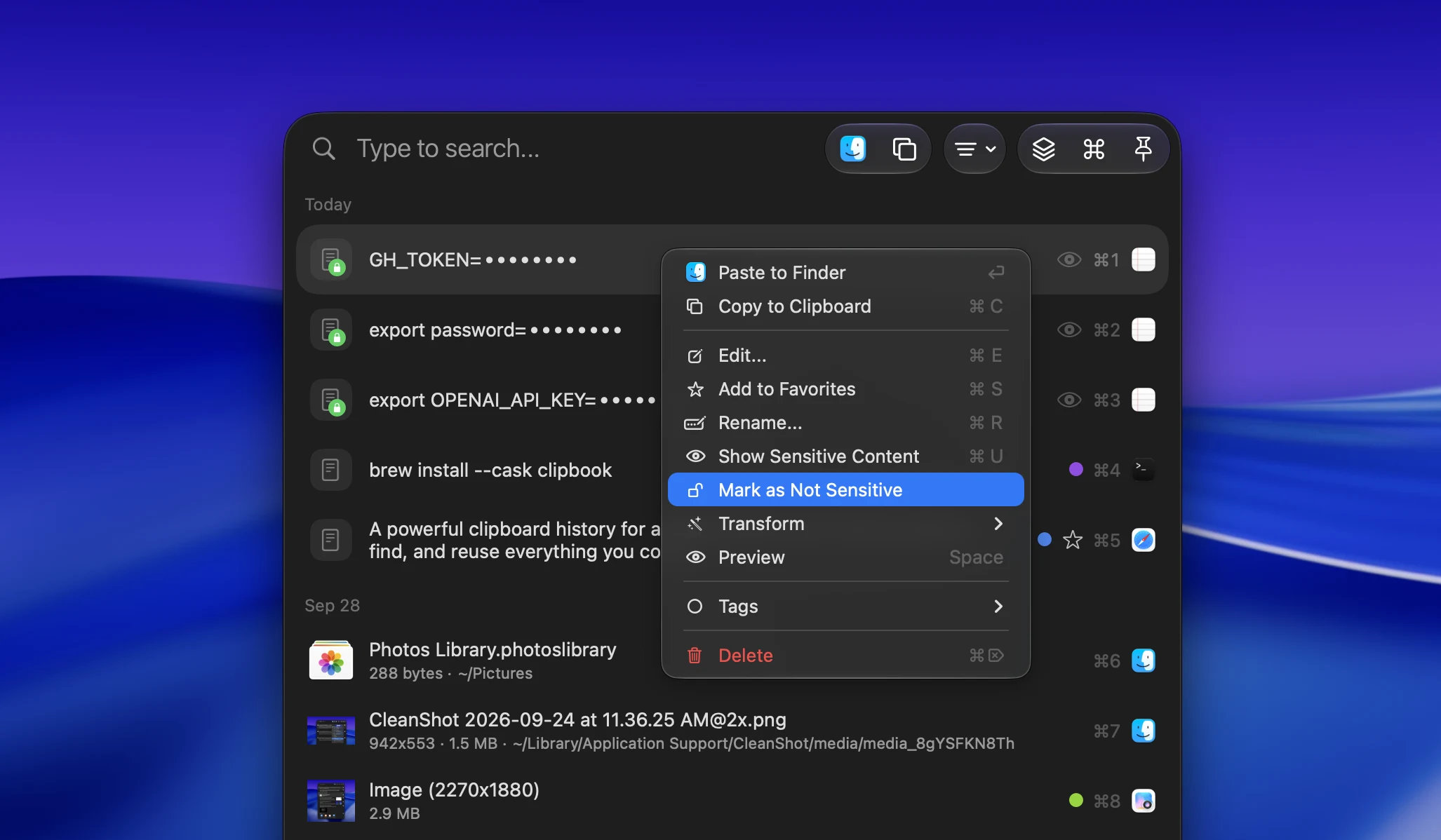
Need to check what’s behind the dots? Click the eye in the row or in the preview toolbar, or just press ⌘U. The content stays visible until you hide the history window, then it’s masked again automatically. No need to remember to cover it back up.
Manually mark sensitive content
Detection is smart, but you know your data best:
- Flag something yourself. Right-click any text item and mark it as sensitive.
- Undo a false alarm. If ClipBook masked something that isn’t secret, mark it as not sensitive from the same menu.
The best part is that masking is purely visual. Pasting, copying, dragging and searching always use the original text, so a masked item works exactly like any other. You can still search for that token and paste it straight into your terminal.
Make it yours
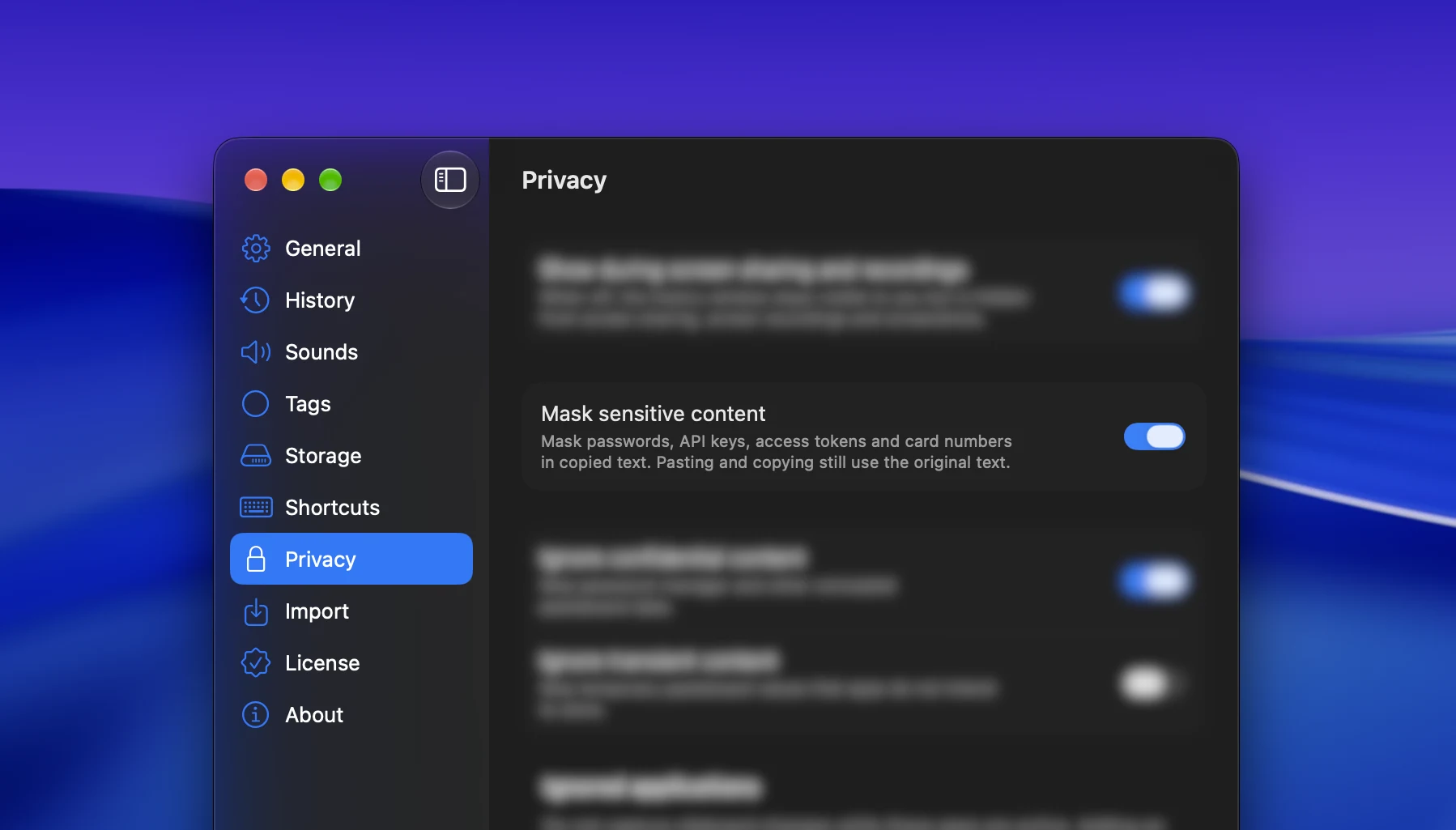
Masking is on by default. If you’d rather see everything in plain text, turn off Mask sensitive content in Settings → Privacy. You can switch it back on at any time.
Get it now
Hide passwords & secrets is available in ClipBook 2.3.0 and later. Update to get it, or download ClipBook if you’re new.
I’d love to hear how they work for you. If ClipBook flags something it shouldn’t, or misses something it should, let me know. Your feedback helps make detection better for everyone.
Happy (and private) copying!