How to recover copied text on Mac, even after you delete it
Copied over something important, or deleted it from your clipboard history? Here is what you can still get back on a Mac, where to look first, and how to restore deleted clipboard items from the Trash.
You copied a long reply, then copied a link to paste next to it, and the reply is gone. Or you cleaned up your clipboard history, pressed delete one time too many, and the snippet you needed went with it.
Whether you can get it back depends on one thing: was anything recording your clipboard at the moment you copied? This post goes through every case on a Mac, from what’s worth trying right now to how to make sure it never happens again. I build a clipboard manager, ClipBook, and I’ll point out where it helps — but the first half of this post works without installing anything.
The short answer
- You copied over the clipboard and use only the built-in Mac clipboard (macOS Sequoia or earlier): the old text isn’t stored anywhere. Go back to where you copied it from.
- You’re on macOS 26 Tahoe or later and turned on clipboard history in Spotlight: press ⌘Space, then ⌘4. Your earlier copies are in that list for up to 7 days.
- You use a clipboard manager: the earlier copy is in its history. If you deleted it, ClipBook keeps deleted items in the Trash for 1 month by default.
- You restarted the Mac: the built-in clipboard is empty, but a clipboard manager’s history survives restarts.
Why copied text disappears on a Mac
When you press ⌘C, macOS puts the content into the pasteboard — a single slot in memory. Copy something else and the new content replaces the old one. There’s no backup, no log on disk and no hidden history folder.
The same slot is emptied when you restart the Mac or log out. That’s why “recover clipboard” is mostly the wrong question on a Mac. The clipboard itself holds exactly one item, and it’s the item you’re looking at right now. You can see it in Finder → Edit → Show Clipboard.
So the real question is whether a copy of your text exists somewhere else.
I accidentally copied over my clipboard. Can I get it back?
Not from the clipboard. But the text often still exists in one of these places. Try them in this order, while the trail is fresh.
#1. Undo in the app you cut it from. If you cut the text with ⌘X instead of copying it, switch back to that app and press ⌘Z. The text comes back where it was. This is the case people panic about most, and it’s usually fully recoverable.
#2. Go back to the source. If you copied from a web page, it’s in your browser history (⌘Y in Safari and Chrome). If you copied from an email, chat or document, it’s still there.
#3. Look where you already pasted it. If you pasted the text once before overwriting the clipboard — into a message, a search field, a form — it’s in that app. Check sent messages, drafts and the app’s own history.
#4. Check earlier versions of the document. Pages, Numbers, Keynote, TextEdit and many other Mac apps save versions automatically. Open the document and choose File → Revert To → Browse All Versions to find the version that still had your text. Time Machine works the same way for files that were backed up.
What won’t help: data recovery apps and Terminal tricks. Recovery apps scan the disk for deleted files, and the clipboard was never a file. In Terminal, pbpaste prints only what’s on the clipboard right now — the text you just copied over it.
If none of this works, the text is gone. The only fix from here is to have something record your clipboard before the next time.
How to recover copied text from the Spotlight clipboard on macOS 26 Tahoe
macOS 26 Tahoe added a short clipboard history to Spotlight, and macOS 27 Golden Gate kept it. If you turned it on before you copied, your previous text is probably there.
- Press ⌘Space to open Spotlight, then press ⌘4.
- Find the text you lost. Type a word from it to filter the list.
- Select it and press ⌘C to put it back on the clipboard.
- Switch to your app and paste with ⌘V.
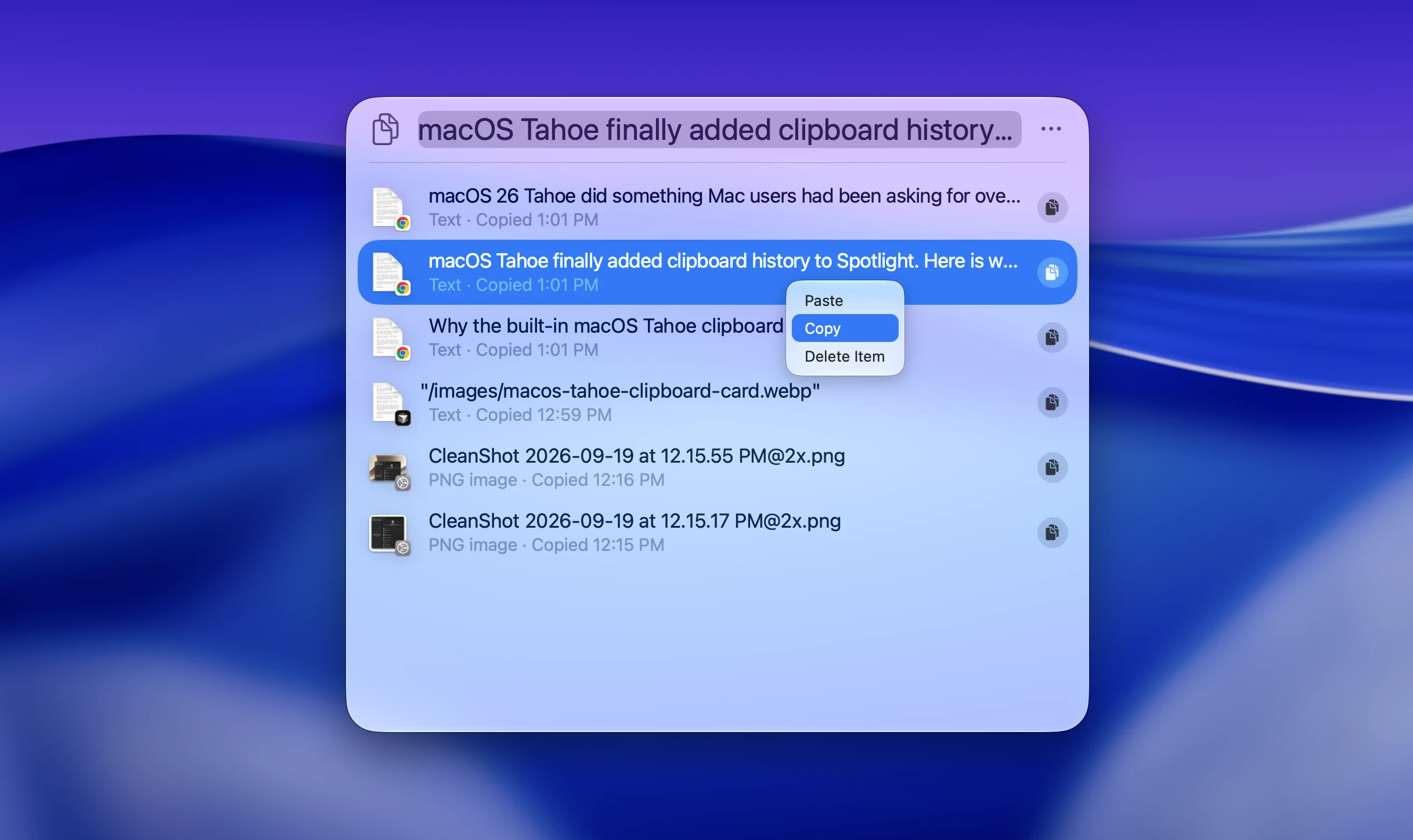
If the item isn’t in the list, these are the usual reasons:
- The feature wasn’t on yet. It’s off until you click Allow (Enable on Tahoe) the first time you open the Clipboard tab. Nothing copied before that was recorded.
- It expired. Items are kept for 30 minutes, 8 hours or 7 days, depending on System Settings → Spotlight → Results from Clipboard. Eight hours is the default.
- It was never added. Copies from Apple’s Passwords app, from your iPhone through Universal Clipboard, and texts longer than about 16,000 characters aren’t recorded. The list also shows only about the last 20 items.
- You removed it. Spotlight lets you remove an item or clear the whole history, but there’s no Trash and no undo. Once it’s removed, it’s gone.
I covered these limits in more detail in How to see clipboard history on Mac.
How to recover deleted clipboard items in ClipBook
This is the case a clipboard history makes worse, not better. The whole point of a history is that you keep things, so it’s easy to delete items in bulk — and easy to delete the one you needed.
Since ClipBook 2.4.0, deleting an item doesn’t remove it for good. It moves to the Trash, just like a file you delete in Finder. You can put it back with a shortcut or a couple of clicks.
Undo a deletion right away
If you just deleted something, press ⌘Z in ClipBook. The items come back to your history, and ClipBook selects the items you had selected before. This works for a single Delete, for Delete All, and for Paste & Delete.
Changed your mind again? ⇧⌘Z redoes the deletion.
Put items back from the Trash
If you deleted the item earlier — yesterday, last week, after closing ClipBook — open the Trash:
- Type
Trashin the search field and select the Trash suggestion. You can also click the More button (⋯) in the toolbar and choose Filter By → Type → Trash. - Find the items you want. The most recently deleted are at the top, and you can type to search the Trash like the rest of your history.
- Press ↵, or right-click the items and select Put Back.
The items return to your clipboard history, ready to paste.
There’s one more way an item comes back: if you copy something that’s already in the Trash, or import an archive that contains it, ClipBook puts it back automatically instead of keeping two copies.
How long deleted items stay in the Trash
By default, ClipBook keeps deleted items for 1 month. You can change it in Settings → Storage → Keep deleted items in Trash: 1 day, 1 week, 1 month or 3 months. Choose Off if you’d rather have deletions be permanent.
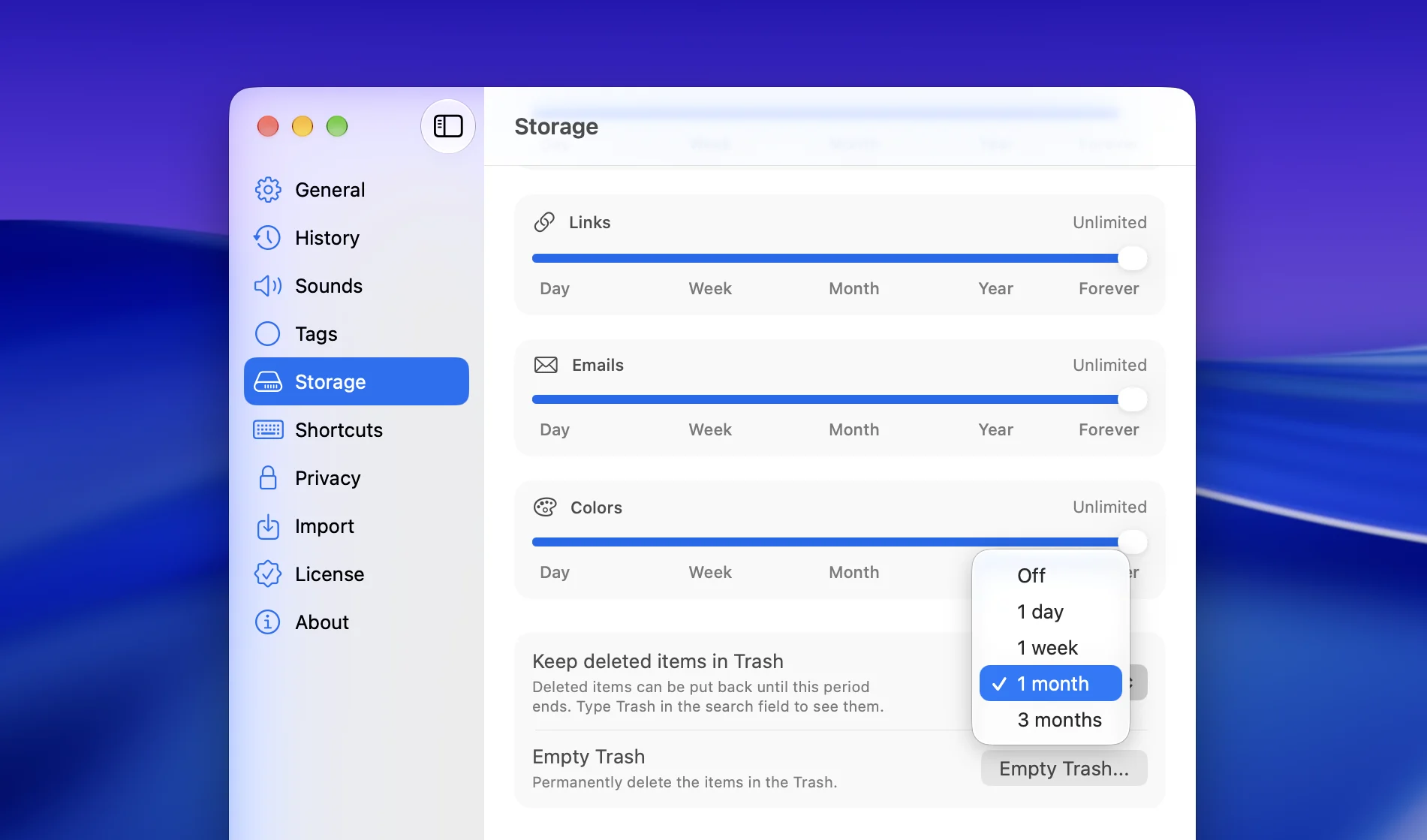
To delete something for good before then, select it in the Trash and press ⌘⌫, or empty the whole Trash from the Command Palette or Settings → Storage.
What doesn’t go to the Trash
A few deletions skip the Trash on purpose:
- Items with hidden sensitive content, such as passwords and API keys. Keeping a deleted password around for a month would defeat the point of deleting it.
- Items removed when ClipBook clears the history on quit or after a restart. You asked for a clean slate, so the Trash is emptied too.
- Items removed automatically because they’re older than the period you set in Keep history.
The full reference is in the guide How to restore deleted items.
How to recover clipboard history after a restart
The built-in Mac clipboard is emptied every time you restart, and so is the Spotlight clipboard history. There’s no way to get either back.
A clipboard manager stores its history on disk, so a restart changes nothing. ClipBook keeps your history forever by default. It’s cleared on restart only if you turned on Clear history on Mac restart yourself.
If ClipBook wasn’t running when you copied something, it couldn’t record it. Turn on Launch at login so it’s always running after a restart.
How to never lose copied text again
Every way of recovering copied text on a Mac comes down to the same thing: a copy has to exist somewhere other than the clipboard. You can’t set that up after the fact, so set it up now.
If you copy a few things a day, turn on the Spotlight clipboard history on macOS Tahoe or later and set it to 7 days. It’s free and already on your Mac. Just remember that it expires, skips some copies, and has no undo.
If you copy and paste a lot, use a clipboard manager. ClipBook keeps everything you copy — text, rich text, images, files, links — for as long as you want, on your Mac only. You open it with ⇧⌘V, search it, and paste with ↵. And when you delete something by mistake, it’s in the Trash.
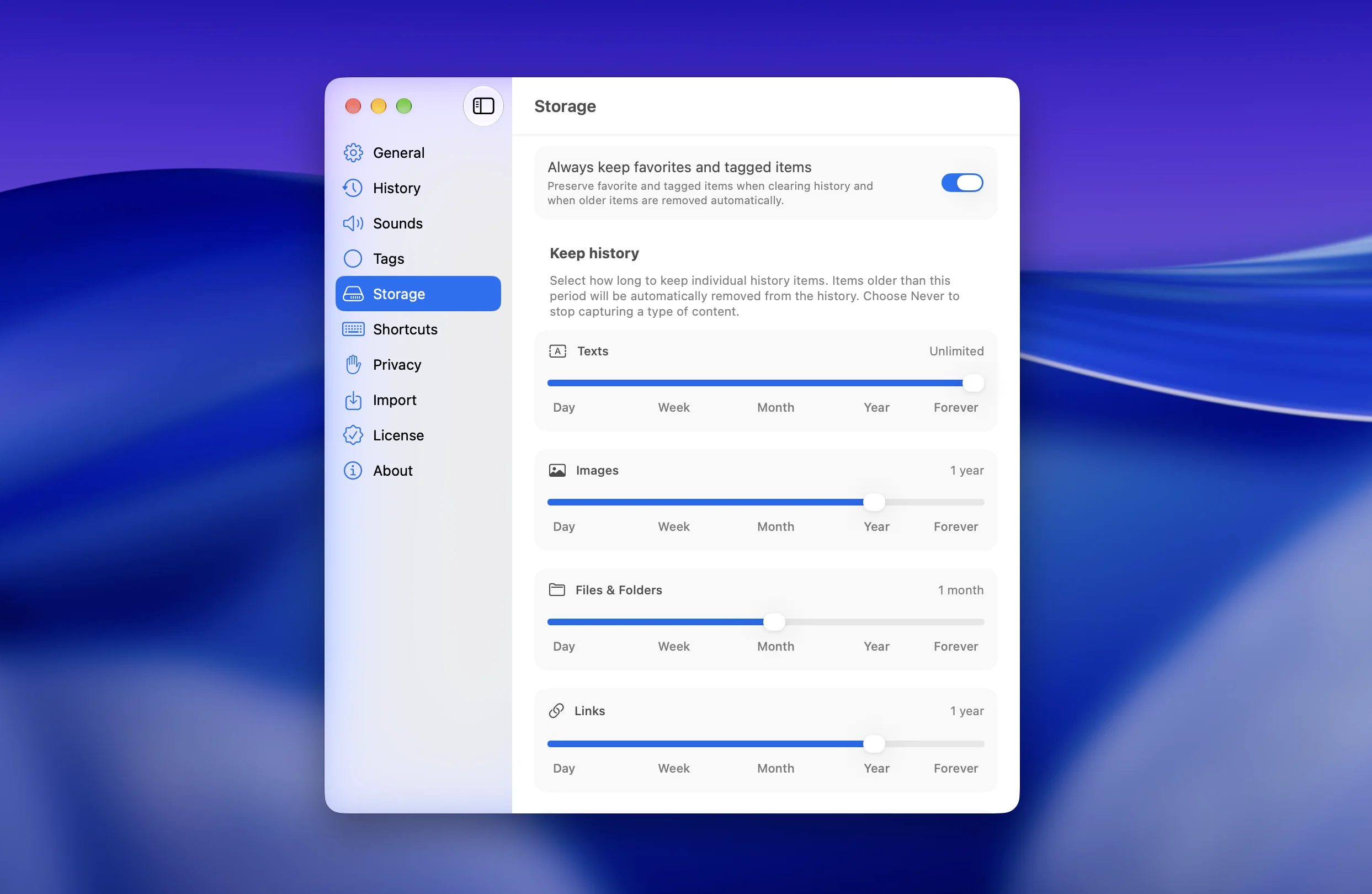
A few settings make it hard to lose anything:
- Add snippets you reuse to Favorites, and keep Always keep favorites and tagged items on so they’re never removed automatically.
- Set the Trash to 3 months if you clean up your history often.
- Export your history before you move to a new Mac.
FAQ
Can you recover clipboard history on Mac?
Only if something was recording it when you copied. macOS Sequoia and earlier keep just the last copied item, so anything before it is gone. macOS Tahoe and later keep a short history in Spotlight if you turned it on, for up to 7 days. A clipboard manager keeps everything for as long as you want, and ClipBook also moves deleted items to a Trash you can restore from.
How do I get back previously copied text on Mac?
On macOS Tahoe or later, press ⌘Space, then ⌘4, find the item in the Clipboard list and press ⌘C to copy it again. With a clipboard manager, open its history (⇧⌘V in ClipBook) and paste the earlier item. Without either, go back to the place you copied it from.
Where do deleted clipboard items go on Mac?
Nowhere, if you use the built-in clipboard. The single clipboard slot is overwritten, and items removed from the Spotlight clipboard history aren’t kept anywhere you can open. In ClipBook, deleted items go to the Trash and stay there for 1 month by default, so you can put them back.
Is there an undo for the Mac clipboard?
No. ⌘Z undoes changes inside an app, not what you copied. If you cut text with ⌘X, pressing ⌘Z in that app puts the text back. If you overwrote the clipboard by copying something else, macOS has no undo for that. In ClipBook, ⌘Z undoes deleting items from your clipboard history.
Can I recover clipboard history after a restart?
Not from macOS. The clipboard lives in memory and is emptied when the Mac restarts. A clipboard manager stores its history on disk, so it’s still there after a restart unless you told it to clear the history.
Can data recovery software recover copied text?
No. Data recovery apps look for deleted files on disk. The Mac clipboard is kept in memory and is never written to a file, so there’s nothing on disk for them to find.