How to see clipboard history on macOS 26 Tahoe and later
Macs kept only one copied item until macOS Tahoe added a clipboard history to Spotlight. Here is how to turn it on, how to open it, what it still can't do, and how to get a full history instead.
You copied an address, then copied a tracking number, and now you need the address back. On a Mac that used to mean going back to the source and copying it again. Since macOS 26 Tahoe it doesn’t — if you know where Apple hid the clipboard history and you turned it on.
This guide covers all of it: what your Mac keeps by default, how to open the built-in history on macOS Tahoe and macOS 27 Golden Gate, what it still refuses to do, and what to install when you need a real one. No step is behind a paywall, and I’ll tell you honestly when the free options are enough.
The short answer
- macOS 26 Tahoe and later (including macOS 27 Golden Gate): there is a clipboard history, in Spotlight. Press ⌘Space, then ⌘4. It is off by default, keeps items for 30 minutes, 8 hours or 7 days, and shows plain text only.
- macOS 15 Sequoia and earlier: there is no clipboard history. Your Mac remembers exactly one item. You can look at it with Finder → Edit → Show Clipboard.
- Either way: if you want your copies kept for longer than a week, pinned, searchable inside images, or hidden from screen sharing, you need a clipboard manager.
Not sure which macOS you’re on? Open the Apple menu → About This Mac. If it says macOS 26 or macOS 27, skip ahead to the Spotlight steps.
Where is the clipboard on Mac, and what it keeps
When you press ⌘C, macOS puts the content into the pasteboard — a small area of memory, not a file and not an app. ⌘V reads it back.
There is exactly one slot. Copy something else and the previous content is gone. Restart the Mac and it’s gone too.
To see what’s in that slot right now, open Finder and choose Edit → Show Clipboard from the menu bar:
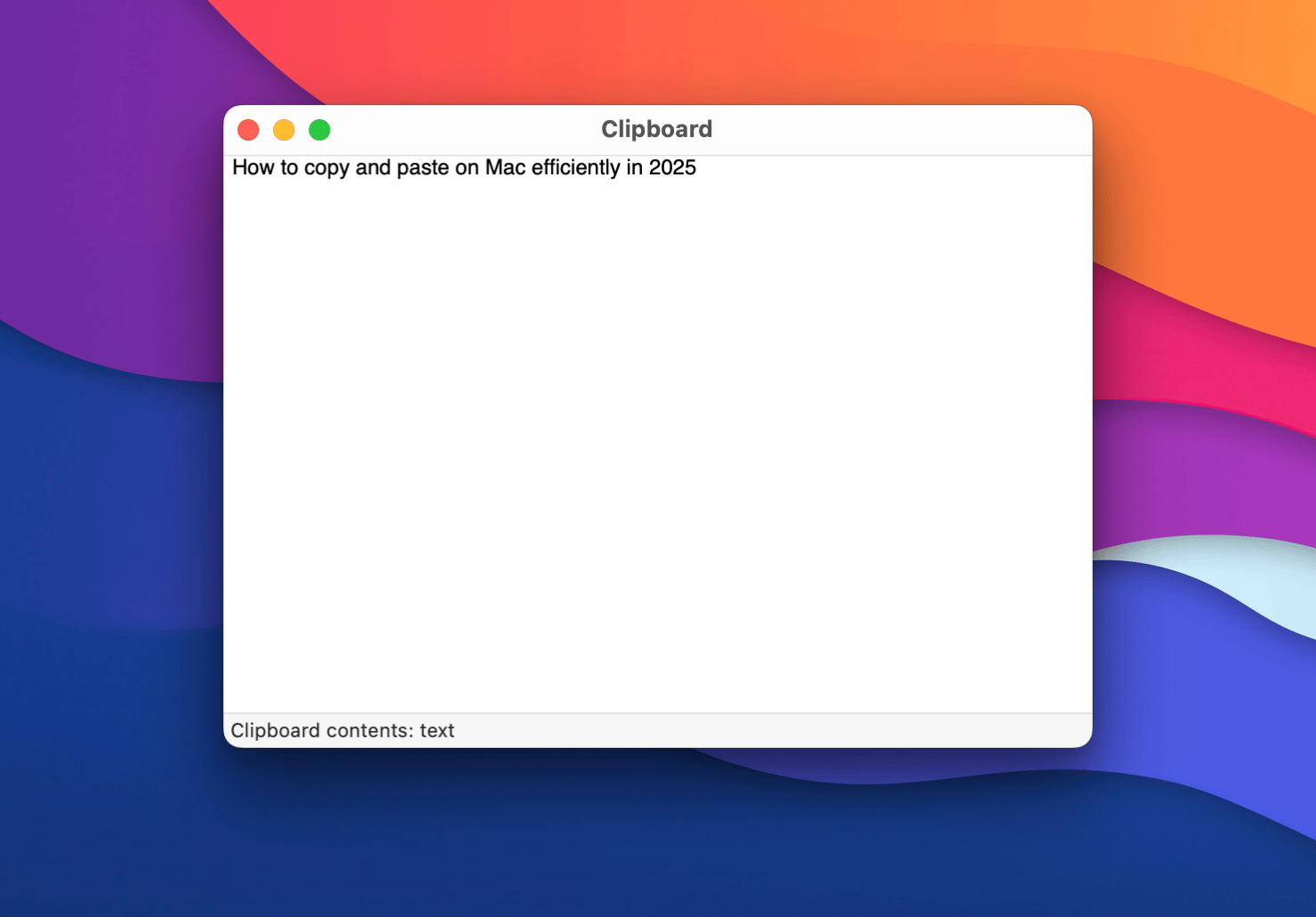
That window is the whole of the built-in clipboard on macOS Sequoia and earlier. One item, no history, nothing to search, nothing you can click to paste. It’s a viewer, not a list.
So if you’re on Sequoia or older and you searched for “how to view clipboard history mac”, the accurate answer is: your Mac doesn’t have one. Jump to the clipboard manager section — that’s the only way to get one.
How to see clipboard history on macOS 26 Tahoe
macOS 26 Tahoe added a Clipboard section to Spotlight, and macOS 27 Golden Gate kept it unchanged apart from one button label. Here’s the whole setup, start to finish.
Step 1: Open the Clipboard tab in Spotlight
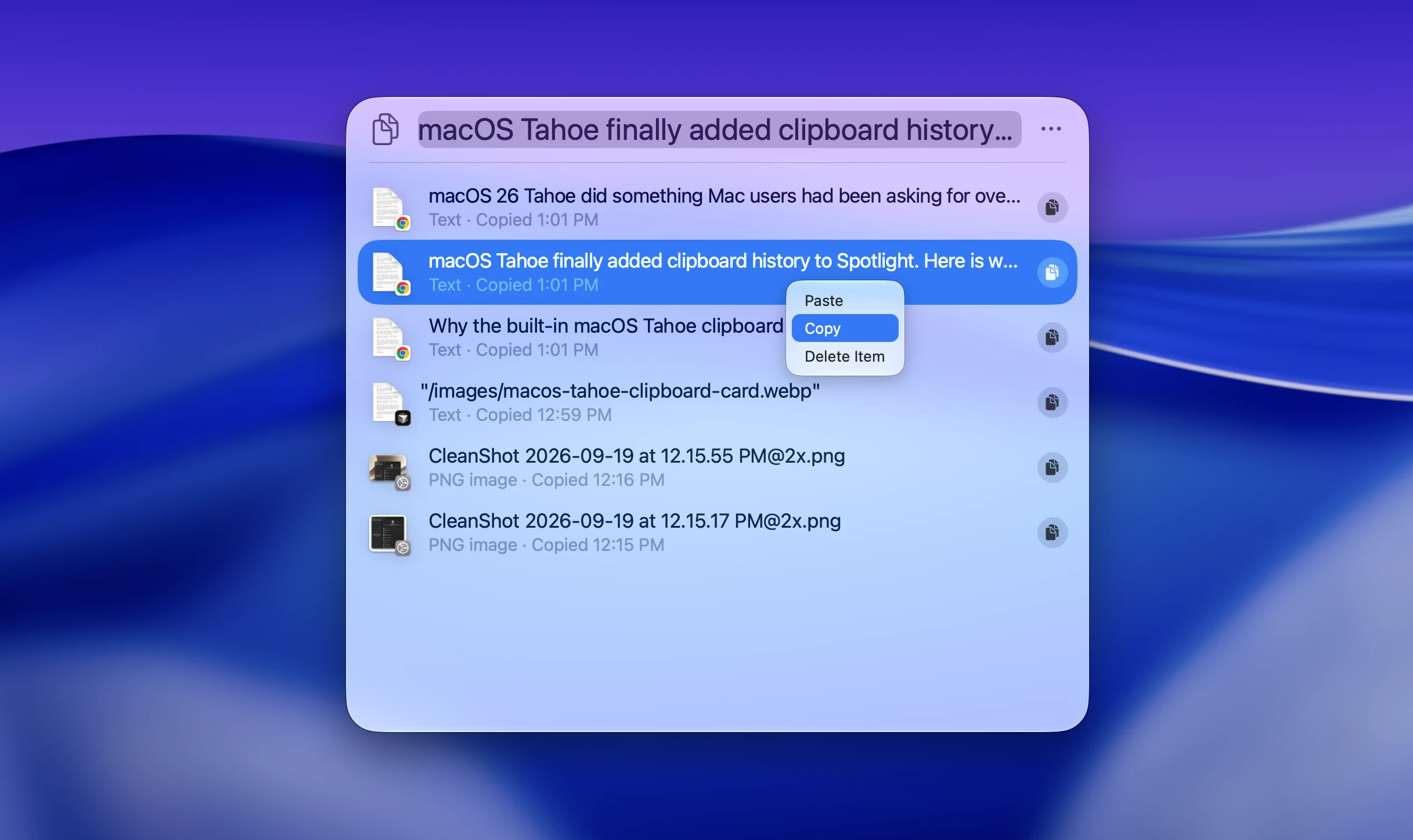
Press ⌘Space to open Spotlight, then press ⌘4. You can keep ⌘ held down the whole time: ⌘ + Space, then 4. You can also click the clipboard button next to the search field.
Step 2: Allow clipboard results the first time
The first time you open the tab, macOS asks for permission. The button says Allow on macOS 27 and Enable on Tahoe, next to a one-line warning that sensitive information may appear on the clipboard.
This is the step most people miss. Nothing is recorded before you accept it, which is why an empty list right after upgrading is normal and why the thing you copied yesterday isn’t there.
Step 3: Search the list and paste an item
Type a word to filter the list. Select an item and press ⌘C to put it back on the clipboard, or click the copy icon next to it. Then switch to your app and paste with ⌘V.
Note the extra hop: Spotlight copies to the clipboard, it doesn’t paste into the app you came from. Every retrieval is Spotlight → copy → switch back → paste.
Step 4: Choose how long items are kept
Open System Settings → Spotlight and scroll to the bottom, to Results from Clipboard (labelled Clipboard Search in some builds).
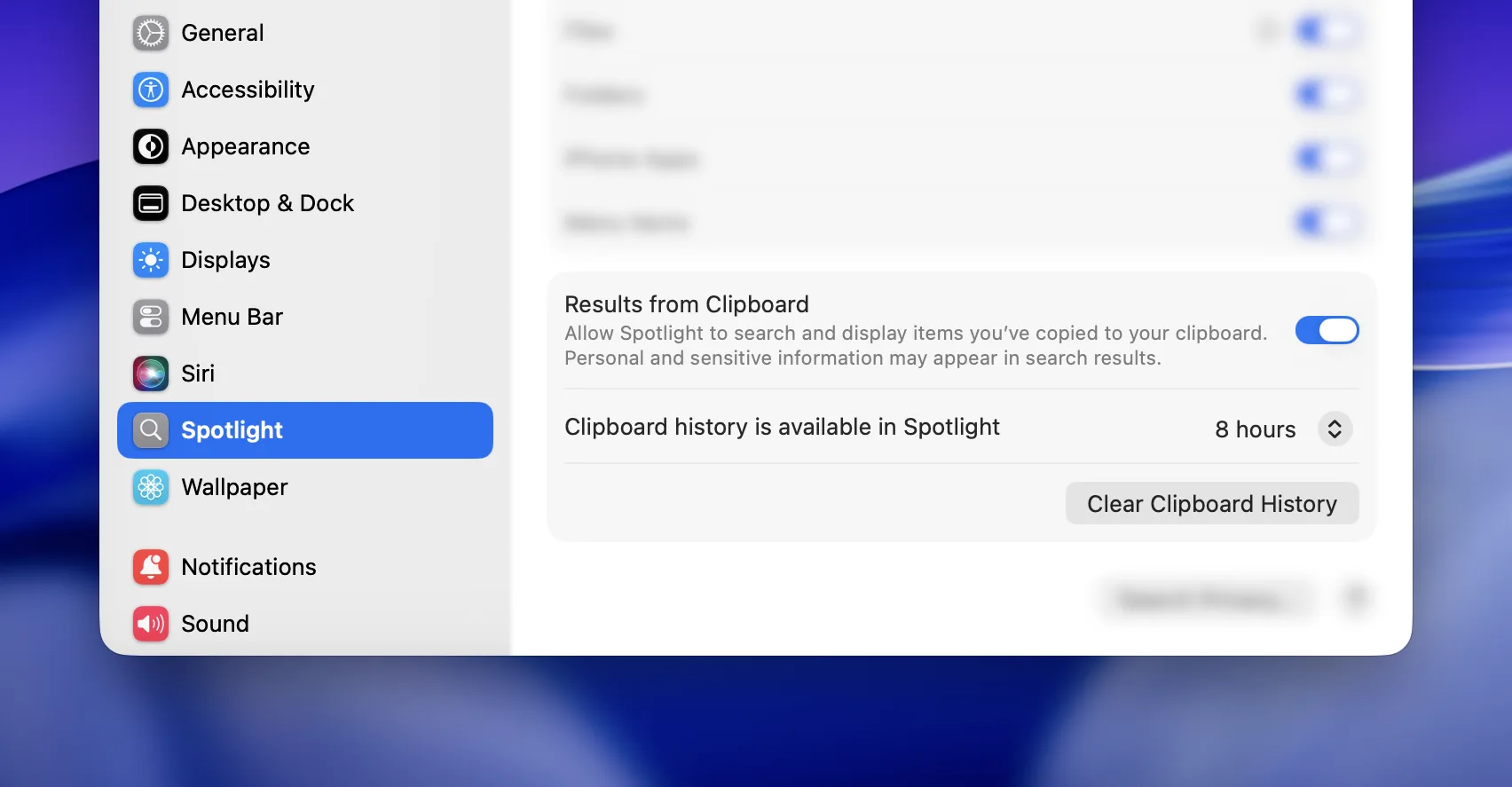
You get three retention options: 30 minutes, 8 hours or 7 days. The first release of Tahoe had only 8 hours and no picker; macOS 26.1 added the other two and a Clear Clipboard History button. Seven days is the ceiling — there’s no “keep forever”.
The same pane is where you turn the feature off if you’d rather not have it at all.
What the built-in clipboard history won’t do
The Spotlight history is a genuine improvement, and for light use it’s enough. But it’s a search result list, not a clipboard manager, and the difference shows up fast.
Everything expires. Seven days maximum, no exceptions, and no way to pin an item so it survives the timer. The email signature you paste every day has the same fate as the URL you copied by accident.
Plain text only. Rich text, formatting, links inside text, tables and Figma objects are stripped. Images are kept but text formatting isn’t.
It drops things silently. Copies longer than roughly 16,000 characters are discarded. Items arriving from your iPhone through Universal Clipboard aren’t added. Some apps write to the clipboard in a way Spotlight doesn’t pick up. Roughly the last 20 items are shown. None of this is documented in System Settings, so the feature feels unreliable — and a history you can’t trust is one you stop opening.
No text recognition in images. You can copy a screenshot, but you can’t find it later by typing a word that appears inside it.
No filtering by source app. You often remember where you copied something from rather than what it said. There’s no way to ask for that.
No sequential paste. Copy five things, switch app once, paste them one after another — not possible. Each item is its own round trip through Spotlight.
Passwords sit there in plain text. This is the one worth knowing even if you never install anything. Copies from Apple’s Passwords app are excluded, and so are copies apps explicitly mark as concealed. Everything else — a password from a third-party manager, an API key from a terminal, a one-time code from a website — is stored and displayed as readable text. There’s no per-app exclusion list and no lock in front of the panel.
It gets worse on a call. IT services provider Ntiva published an advisory telling clients to switch the feature off, noting that clipboard items are “presented unredacted during screen recording sessions.” If a meeting is recorded, whatever’s in that list can end up in the recording. Your only defences are a 30-minute retention window and remembering to clear the history before every call.
I wrote a longer piece on each of these limits in why the built-in macOS Tahoe clipboard isn’t enough.
How to get a real clipboard history on Mac
A clipboard manager is a small app that runs in the background, saves everything you copy, and gives you a searchable window with a shortcut of your own. Windows has had this built in since 2018, and the category is still alive there — which tells you something about what an OS-level history covers and what it doesn’t.
Two honest recommendations.
Maccy — free and open source
Maccy is free, open source, and does the core job well: it keeps a text and image history, opens with a shortcut, and searches fast. If your needs stop at “I want a longer list I can search”, install Maccy and you’re done. It has no OCR, no tags, no filtering by source app, and a lighter set of privacy controls, but it costs nothing and it’s honest about what it is.
ClipBook — what I build
ClipBook is the app I work on, so read this section with that in mind. It exists to cover the gaps listed above.
No expiry. History is kept as long as you want, and you can set different retention per content type. Favorites pin to the top and can survive a full clear.
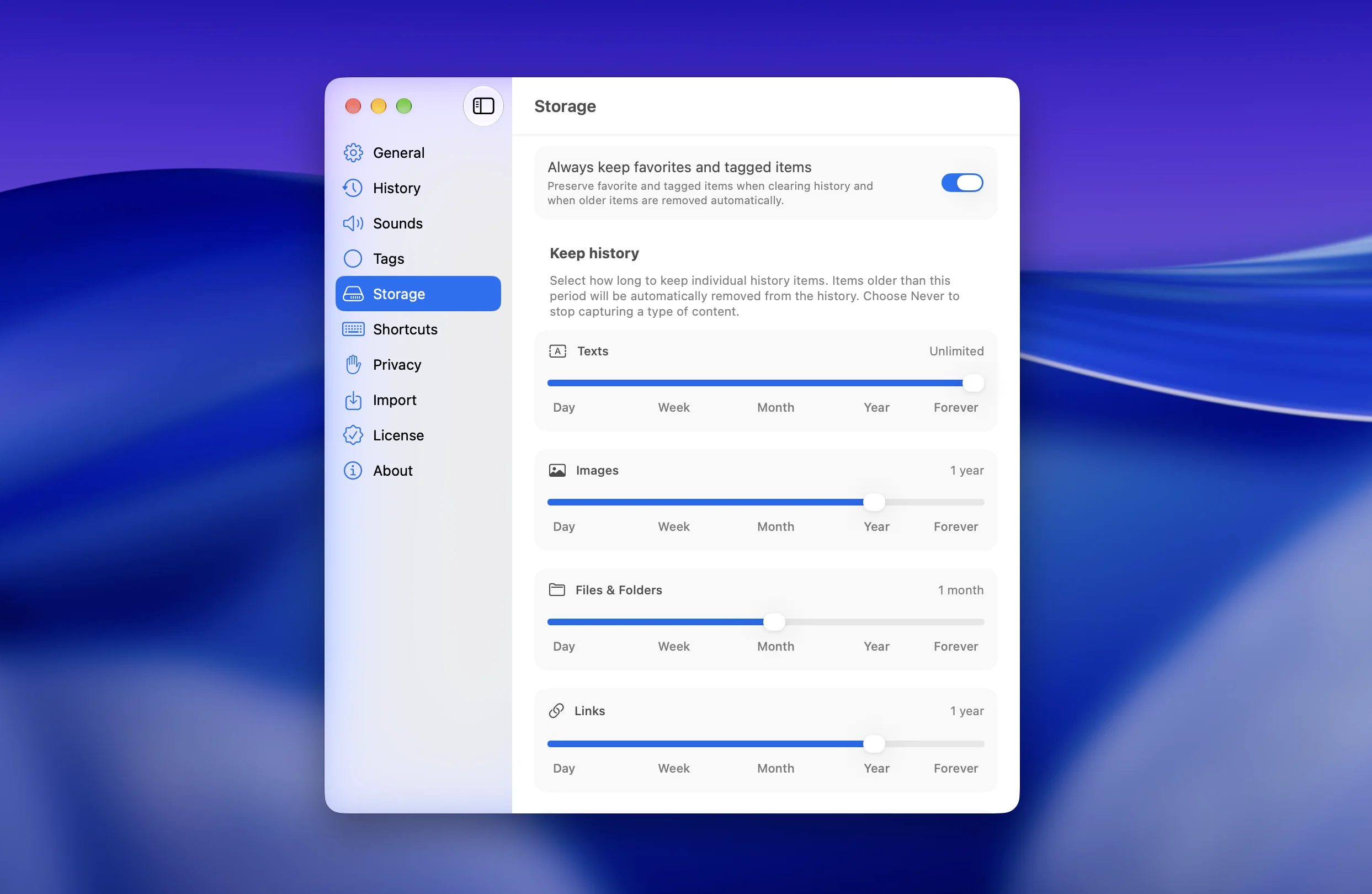
Everything is recorded, in its original form. Plain and rich text, links, images, files and folders, colors, email addresses, Figma objects. Formatting survives, and you decide how to paste it.
Search inside images. Every screenshot is scanned for text, so you can find it by a word that appears in it — the thing the Spotlight list can’t do at all.
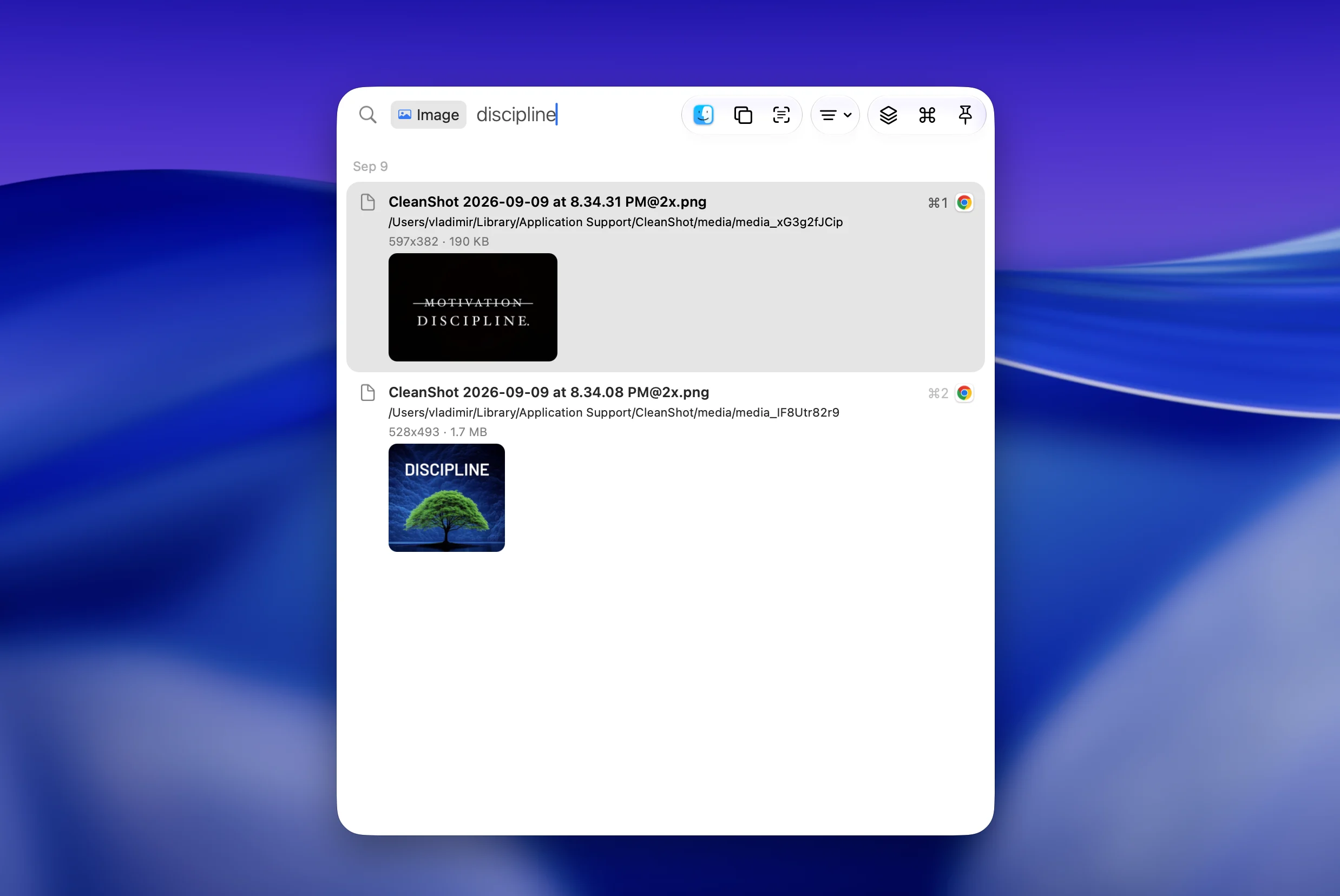
Filter by source app. You remember it came from Slack rather than what it said; the search field suggests that as a filter.
Sequential paste. Copy several things, switch app once, then paste them in order with ⌃V — or paste them all at once with a separator of your choice.
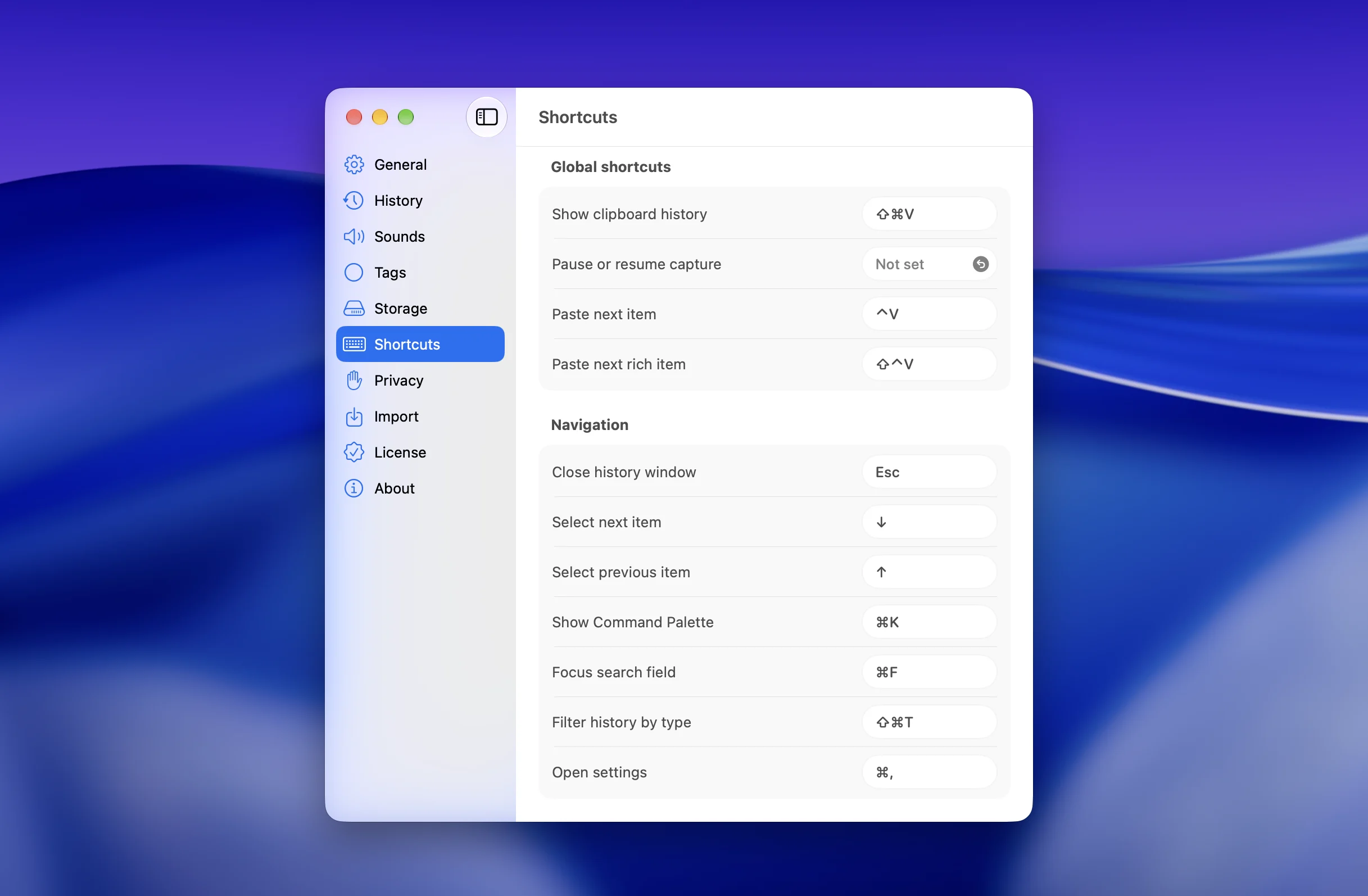
It opens where you’re typing. ⇧⌘V by default, at the text caret, the mouse pointer, or the centre of the active window. Enter pastes straight into the app you came from — no copy-and-switch-back.
Customizable shortcuts. Every shortcut is customizable.
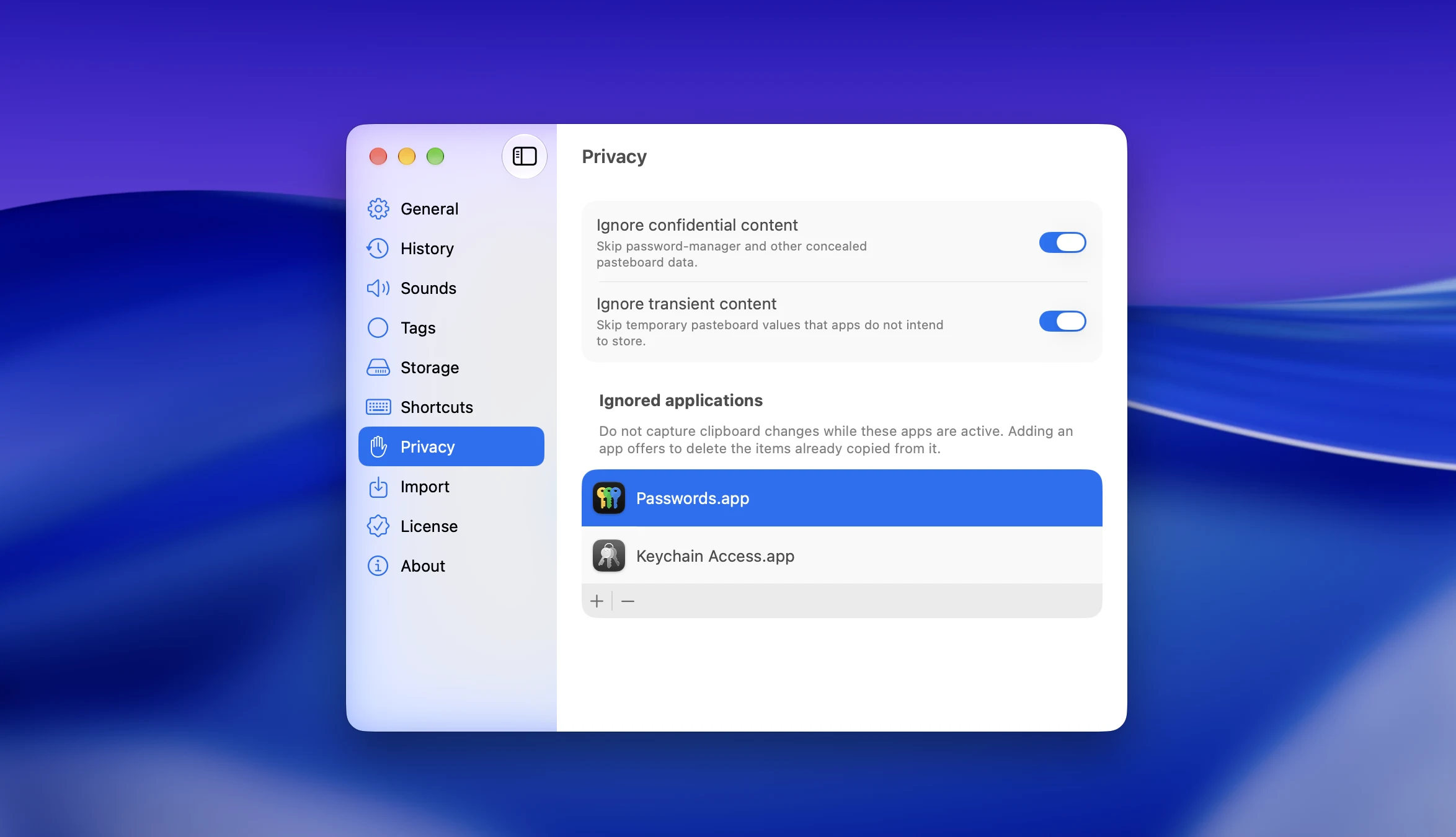
Privacy is a setting, not a habit. Ignore specific apps so your password manager is never recorded, ignore confidential and transient content (on by default), or pause capture with a shortcut before a call. Nothing leaves your Mac: no cloud sync, no account, no analytics, and the source code is open.
Which one should you use
Stay with the built-in Spotlight history if you’re on macOS Tahoe or later, copy a handful of things a day, mostly need them within the same afternoon, never copy credentials outside Apple’s Passwords app, and don’t share your screen. It’s free, it’s already there, and it works.
Use Maccy if you need a simple clipboard history with a longer searchable list and nothing more.
Use ClipBook if you are an experienced user who copy and paste a lot and wants a more powerful clipboard history that can do everything the built-in Spotlight clipboard history can’t.
FAQ
Does Mac have clipboard history?
Yes, since macOS 26 Tahoe. It lives in Spotlight: press ⌘Space, then ⌘4. It’s off until you allow it, and items are deleted after 30 minutes, 8 hours or 7 days depending on your setting. On macOS Sequoia and earlier there’s no clipboard history at all — the system keeps only the last item you copied.
What is the keyboard shortcut for clipboard history on Mac?
⌘Space followed by ⌘4 opens the Clipboard tab in Spotlight on macOS Tahoe and later. There’s no single dedicated shortcut. Clipboard managers add one: in ClipBook it’s ⇧⌘V by default, and you can change it.
Where is the clipboard on Mac?
The clipboard itself is a small piece of memory, not a file or an app. To look at what’s in it right now, open Finder and choose Edit → Show Clipboard from the menu bar. That window shows one item, the most recent one, and it’s cleared when you restart the Mac.
Why can’t I find something I copied in the Mac clipboard history?
The usual reasons are that the retention window passed, the feature wasn’t allowed yet, the Mac was restarted, the copy came from Apple’s Passwords app or from Universal Clipboard on your iPhone, the text was rich text, or the text was longer than about 16,000 characters. The built-in history also shows roughly the last 20 items.
How do I clear clipboard history on Mac?
Open System Settings → Spotlight, scroll to the bottom and click Clear Clipboard History. You can also open the Clipboard tab in Spotlight, click the More button and choose Clear History. To stop recording altogether, switch off Results from Clipboard in the same settings pane.
Is the Mac clipboard history safe for passwords?
Not by itself. Anything you copy from a third-party password manager, a terminal or a website is stored as plain text and shown in the Spotlight list, and it stays visible while you share or record your screen. Only copies from Apple’s Passwords app, and copies apps explicitly mark as concealed, are excluded. A clipboard manager that can ignore specific apps is the safer option.
Do I still need a clipboard manager on macOS Tahoe?
If you copy a few things a day and never need them past the same afternoon, no. If you want items kept for longer than 7 days, pinned favorites, rich text and images, search inside screenshots, filtering by source app, sequential paste, or per-app privacy rules, the built-in history won’t get you there.
Sources
- Apple, Search your Clipboard history in Spotlight on Mac
- MacRumors, Apple Expands Spotlight Clipboard Settings in macOS Tahoe 26.1
- MacRumors, Apple Announces macOS Golden Gate Release Date
- Ntiva, macOS Tahoe — Disable Clipboard History in Spotlight
- MacMost, How To Use the Spotlight Clipboard History In macOS Tahoe