macOS 26 Tahoe clipboard history: why it's not enough
macOS Tahoe finally added clipboard history to Spotlight. Here is why items disappear after 8 hours, why some copies never show up, and what a real clipboard manager does differently.
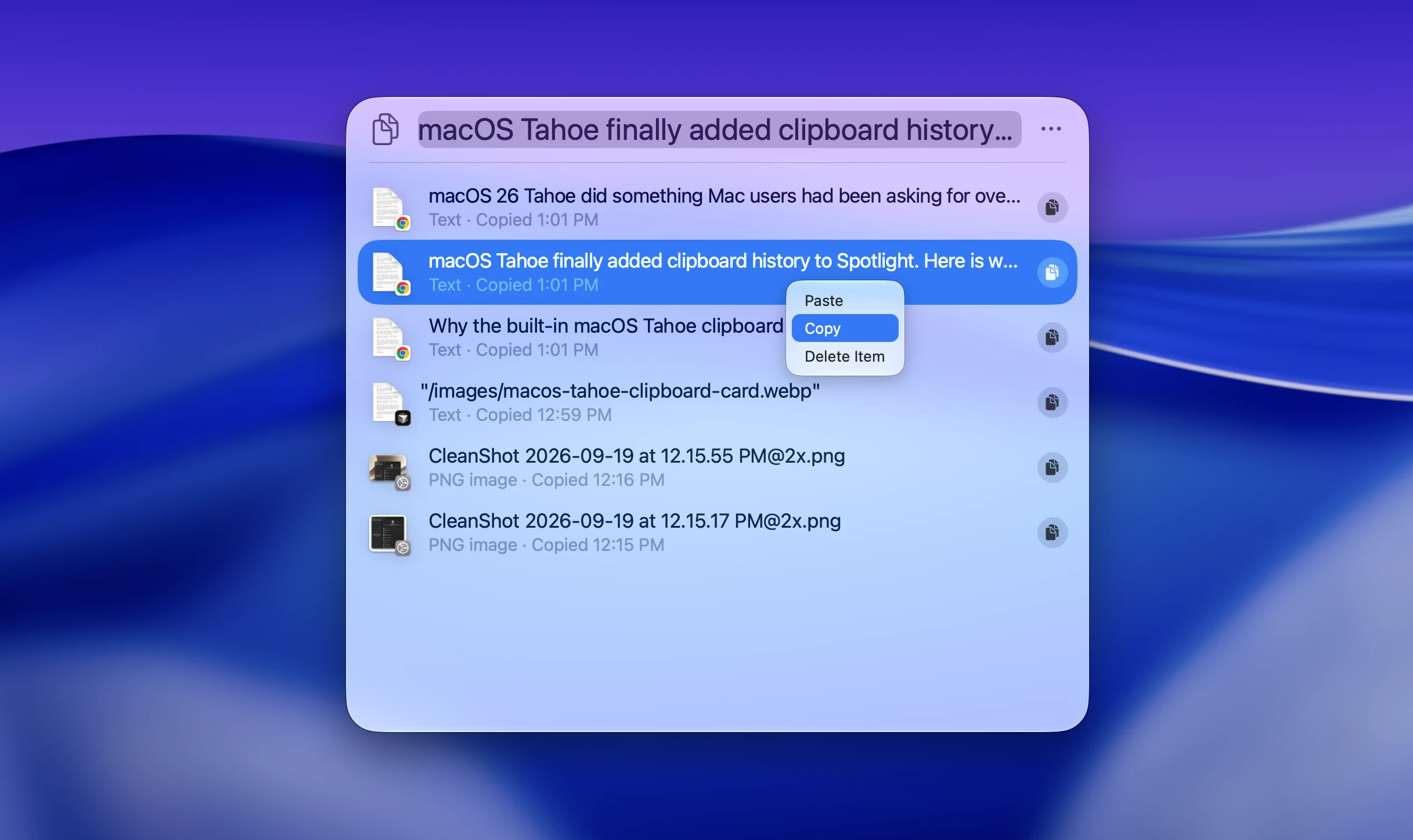
macOS 26 Tahoe did something Mac users had been asking for over a decade: it added a clipboard history to the system. Press ⌘Space, then ⌘4, and Spotlight shows a list of things you recently copied.
I build ClipBook, a clipboard manager for Mac, so you might expect me to say the built-in feature is bad. It isn’t. For a lot of people it’s exactly enough, and if that’s you, this post will tell you so.
But if you searched for something like “why is Mac clipboard history only 8 hours”, “Spotlight clipboard history missing items” or “Tahoe clipboard passwords”, you already ran into one of its walls. This post explains where those walls are, why Apple put them there, and what a dedicated clipboard manager does about each one.
What the Tahoe clipboard history actually is
Apple didn’t build a clipboard manager. It added a Clipboard section to Spotlight. That framing explains most of its behaviour:
- You open it through Spotlight: ⌘Space, then ⌘4 or the clipboard button next to the search field.
- The first time you open it, macOS asks you to enable it.
- The settings live at the bottom of System Settings → Spotlight, under Results from Clipboard.
- Apple’s own guide has exactly one privacy note: “Sensitive information may appear on the Clipboard.”
It's a search result list, not a place where your clips live. Keep that in mind as we go through the limits.
Your history disappears
This is the number one complaint, and the source of the “only 8 hours” searches.
When Tahoe shipped in September 2025, clipboard items were kept for 8 hours and then removed. No setting, no way to keep something longer. In macOS 26.1 (November 2025) Apple added a retention picker with three options: 30 minutes, 8 hours, or 7 days, plus a Clear Clipboard History button.
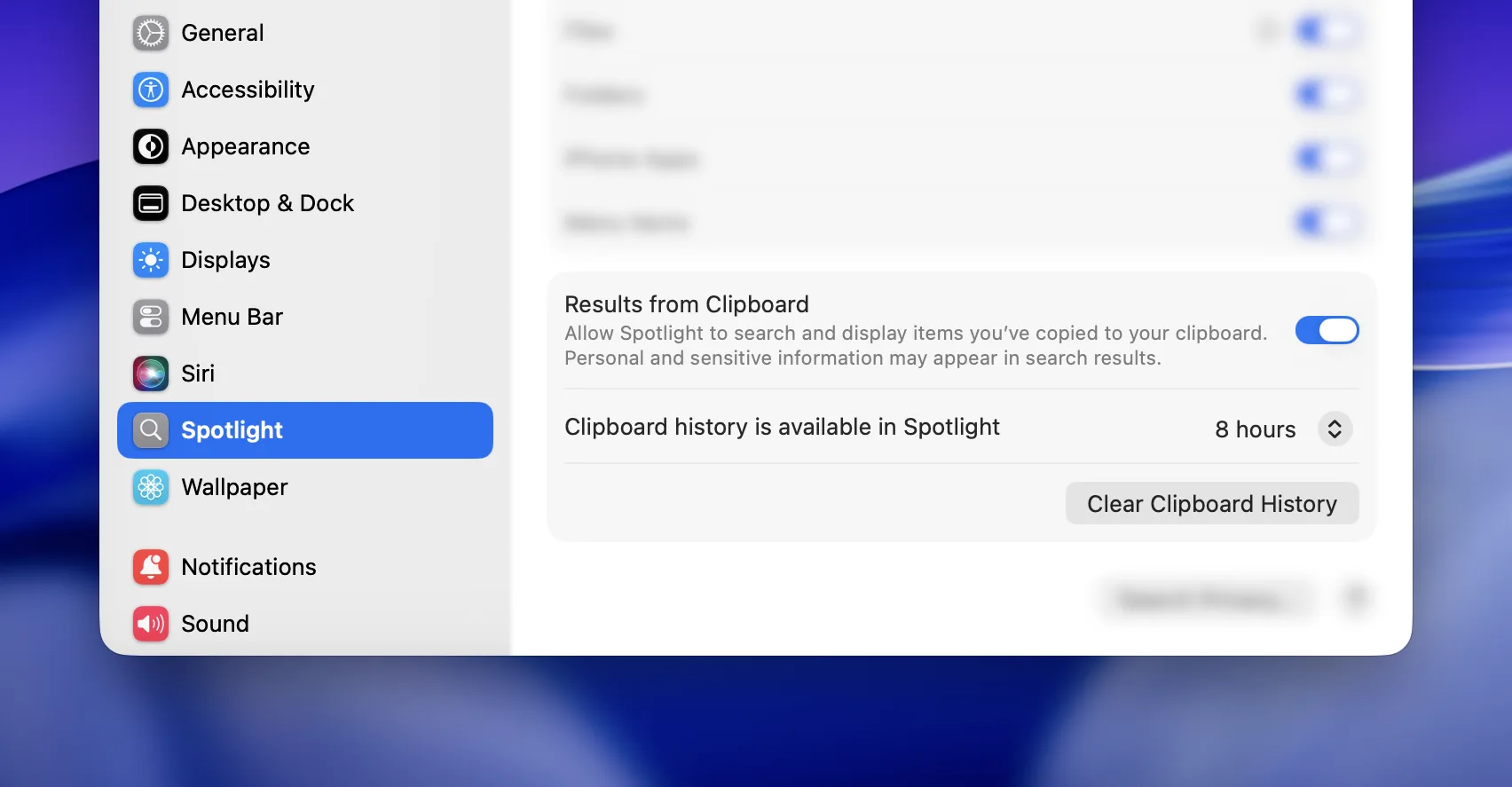
Seven days is better than 8 hours, but the model hasn’t changed: everything expires. There is no way to pin an item so it survives the timer. That address you copy every week, the code snippet you paste into every ticket, the email signature you never saved anywhere else. On the Tahoe clipboard they all have the same fate as the random URL you copied by accident.
Why did Apple design it this way? Almost certainly privacy. A clipboard that remembers everything forever is a liability on a shared Mac, and Apple would rather ship a short window than a permanent archive. That’s a reasonable default for an OS feature. It’s just not what people mean when they say they want clipboard history.
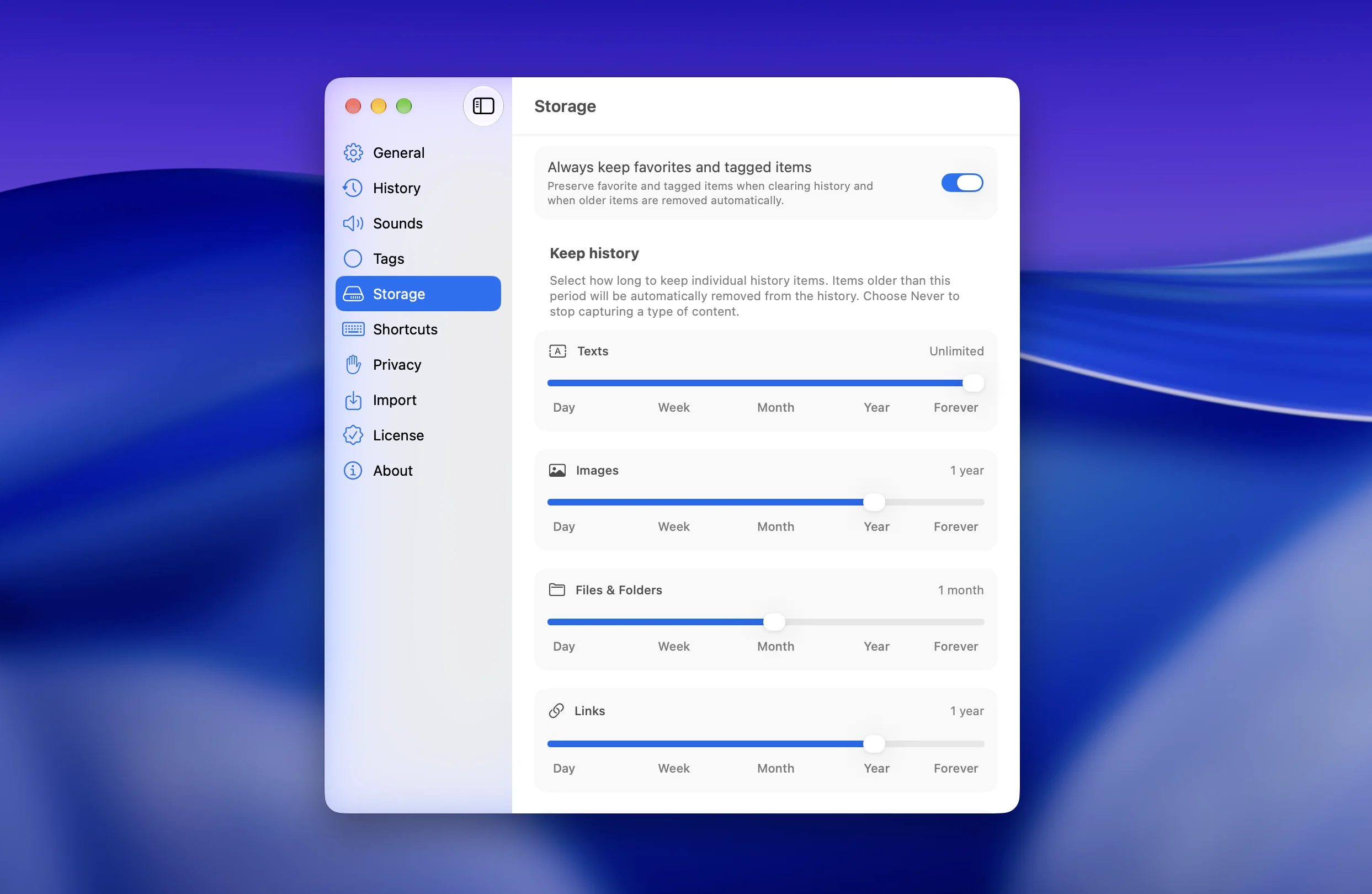
What ClipBook does instead. ClipBook keeps your history for as long as you want. There is no expiry timer. Items you use often can be added to favorites, which pins them to the top of the list and can keep them even when you clear everything else. If you’d rather have the opposite, you can clear the history on quit or on Mac restart. Retention is your decision, not Apple’s.
Moreover, you can choose how long to keep different types of your clipboard history.
Some things you copy never show up
The second most common search is a variation of “macOS clipboard history not saving”. If you copied something and it isn’t in the Spotlight list, it’s usually one of these:
- The retention window passed. See above. Restarting the Mac also clears it.
- The feature wasn’t enabled yet. Nothing is recorded until you accept the prompt the first time you open ⌘4.
- It came from Apple’s Passwords app. Copies from Passwords are deliberately excluded, which is good. Third-party password managers only get that treatment if they mark the copy as concealed.
- It was rich text. Spotlight keeps plain text only. Formatting, links inside the text, tables and shapes are gone, and pasting from Spotlight pastes plain text.
- It was a long piece of text. Very long copies, roughly 16,000 characters and up, are dropped rather than stored.
- It came from your iPhone. Items that arrive through Universal Clipboard aren’t added to the history.
- The app didn’t play along. Some apps write to the clipboard in a way Spotlight doesn’t pick up.
None of this is documented in System Settings, so the feature feels unreliable. Each rule makes sense on its own, but together they mean you can’t trust that a copy will be there when you look for it. And a clipboard history you can’t trust is one you stop using.
What ClipBook does instead. ClipBook records everything that lands on the system clipboard: plain and rich text, links, images, files and folders, colors, email addresses, and even Figma objects. It keeps the original formatting and lets you choose how to paste it. The only things it skips are the ones you tell it to skip, which brings us to privacy.
It opens in Spotlight, not where you’re typing
A clipboard history is something you reach for mid-sentence. With Tahoe, that means: press ⌘Space, press ⌘4, scan a list that appeared in the middle of the screen, pick an item, and go back to what you were writing. There is no dedicated global shortcut, and the panel always appears in the same place regardless of where your cursor is.
It works, but it pulls your eyes and your hands away from the text every single time. Spotlight is designed for launching apps and finding files, not for a paste you do forty times a day.
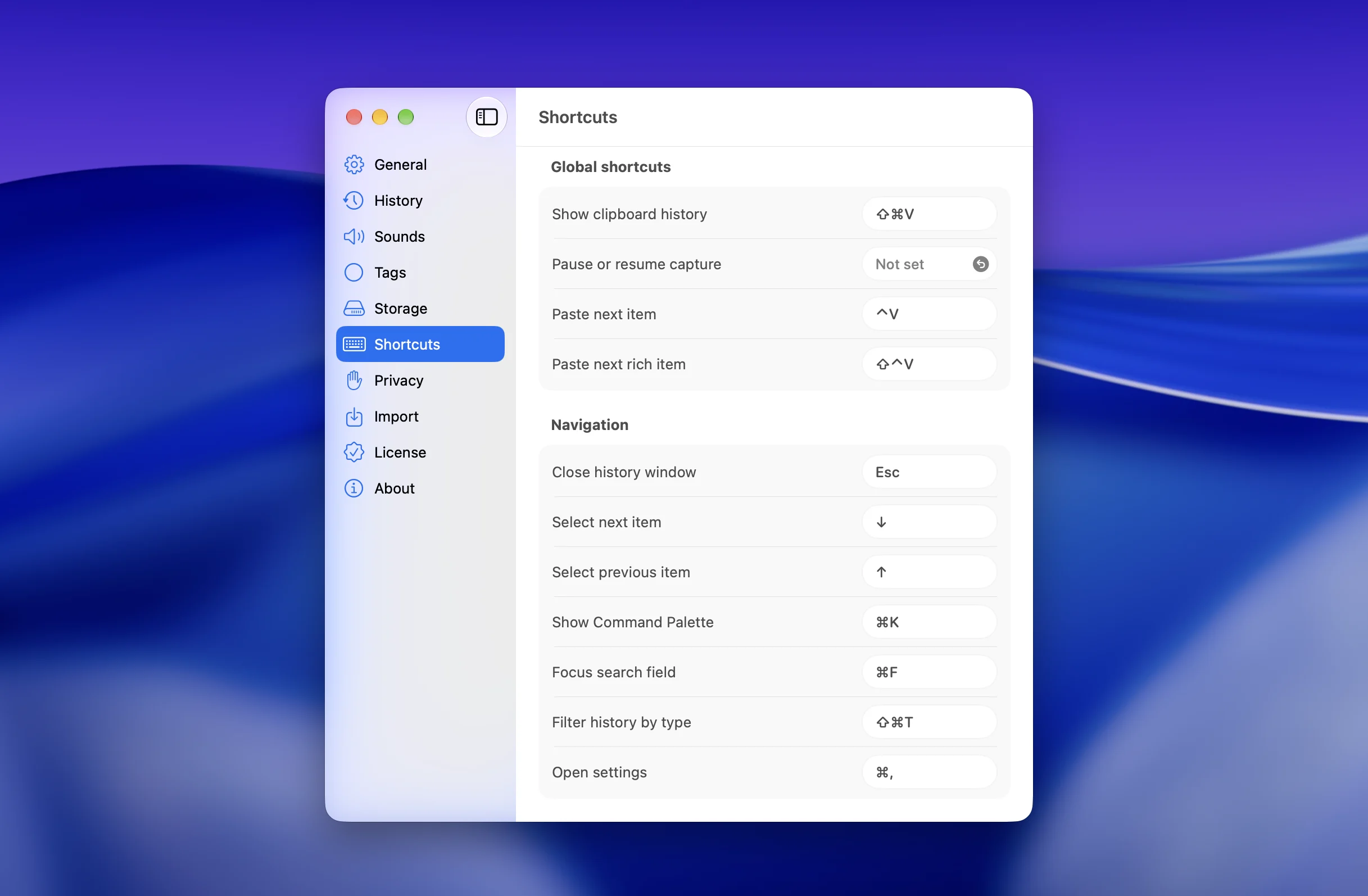
What ClipBook does instead. One shortcut, ⇧⌘V by default, opens the history window. You can choose whether it appears at the text caret, at the mouse pointer, or centered on the active window. Pressing Enter pastes the selected item straight into the app you came from. Everything can be done from the keyboard, and every shortcut is customizable.
Passwords end up in plain text
This is the one I’d like every Tahoe user to know about, whether or not they ever install ClipBook.
Spotlight’s clipboard history stores whatever text you copy. If you copy a password, an API key or a one-time code from anywhere other than Apple’s Passwords app, it’s saved in plain text and shown in the list. There is no per-app exclusion list, no “ignore this app” option, and no lock, PIN or Touch ID in front of the panel. Anyone at your keyboard is two keystrokes away from it.
It gets worse when you share your screen. Ntiva, an IT services provider, published a support article specifically to tell its clients to turn the feature off. In their words, as of the initial release of Tahoe, “these clipboard items are presented unredacted during screen recording sessions” and if a meeting is recorded “you may be sharing your personal or business passwords, sensitive information, API keys, and more in plaintext.”
macOS 26.1 helped a little by adding the 30-minute option and the Clear Clipboard History button. But that puts the burden on you to remember to clear it before every call.
What ClipBook does instead. Privacy is a settings pane, not a habit you have to keep:
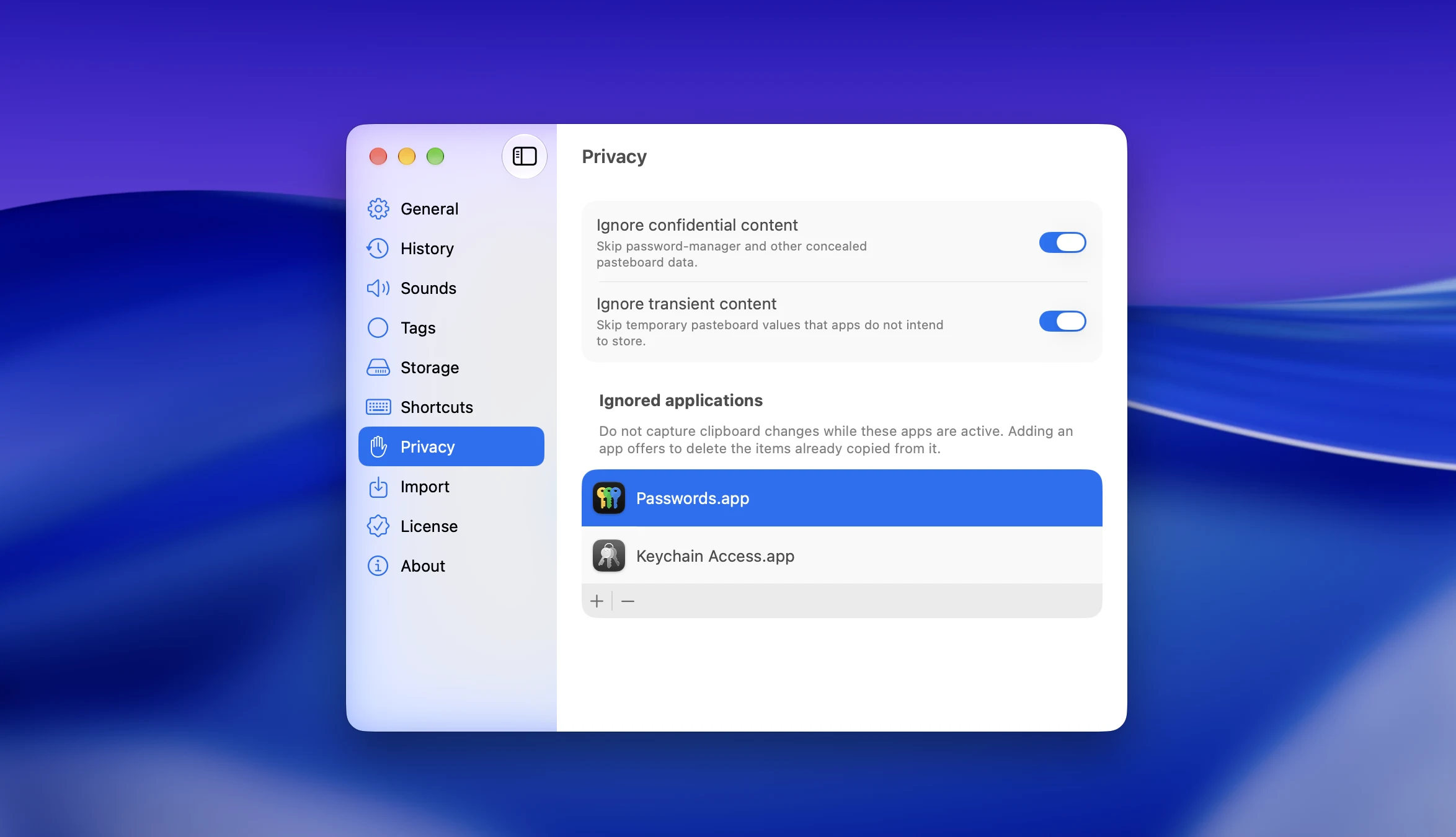
- Ignore specific apps, so nothing copied from your password manager or banking app is ever recorded.
- Ignore confidential and transient content that apps mark as such, on by default.
- Pause capture with a shortcut when you’re about to copy something sensitive.
- Clear everything on quit or on restart if you prefer a clean slate.
And your history never leaves your Mac. ClipBook has no cloud sync, no account, no analytics, and the source code is open so you can check that yourself.
It’s a list, not a tool
Once the basics are covered, the difference between a clipboard history and a clipboard manager is what you can do with the items. The Tahoe list lets you search, copy and paste. That’s it. Here’s what’s missing, and what ClipBook does in each case.
| Feature | ClipBook | macOS Tahoe |
|---|---|---|
| Price | $9.99 once | Free |
| What you pay over 3 years | $9.99 | $0 |
| Lifetime updates | Yes | Yes |
| Local storage | Yes | Yes |
| Open source | Yes | No |
| Copy & merge | Yes | No |
| Ignore apps & sensitive content | Yes | No |
| History retention | Unlimited | 7 days |
| Pin & favorites | Yes | No |
| Tags / pinboards | Yes | No |
| Multiple selection | Yes | No |
| Multiple paste | Yes | No |
| Multiple paste with separator | Yes | No |
| Find text inside images | Yes | No |
| Extract text from QR codes | Yes | No |
| Text transformations | Yes | No |
| Merge / split items | Yes | No |
| Import / export items | Yes | No |
| Pause / resume | Yes | Yes |
| Preview | Yes | No |
| Clear history on quit | Yes | No |
| iCloud sync | No | No |
Based on public documentation and pricing as of September 2026. Prices in USD. Product names belong to their respective owners.
A few of these deserve a closer look.
Search inside images
Every screenshot you copy is scanned for text, so you can find it later by typing a word that appears in it. Tahoe’s search only sees text items.
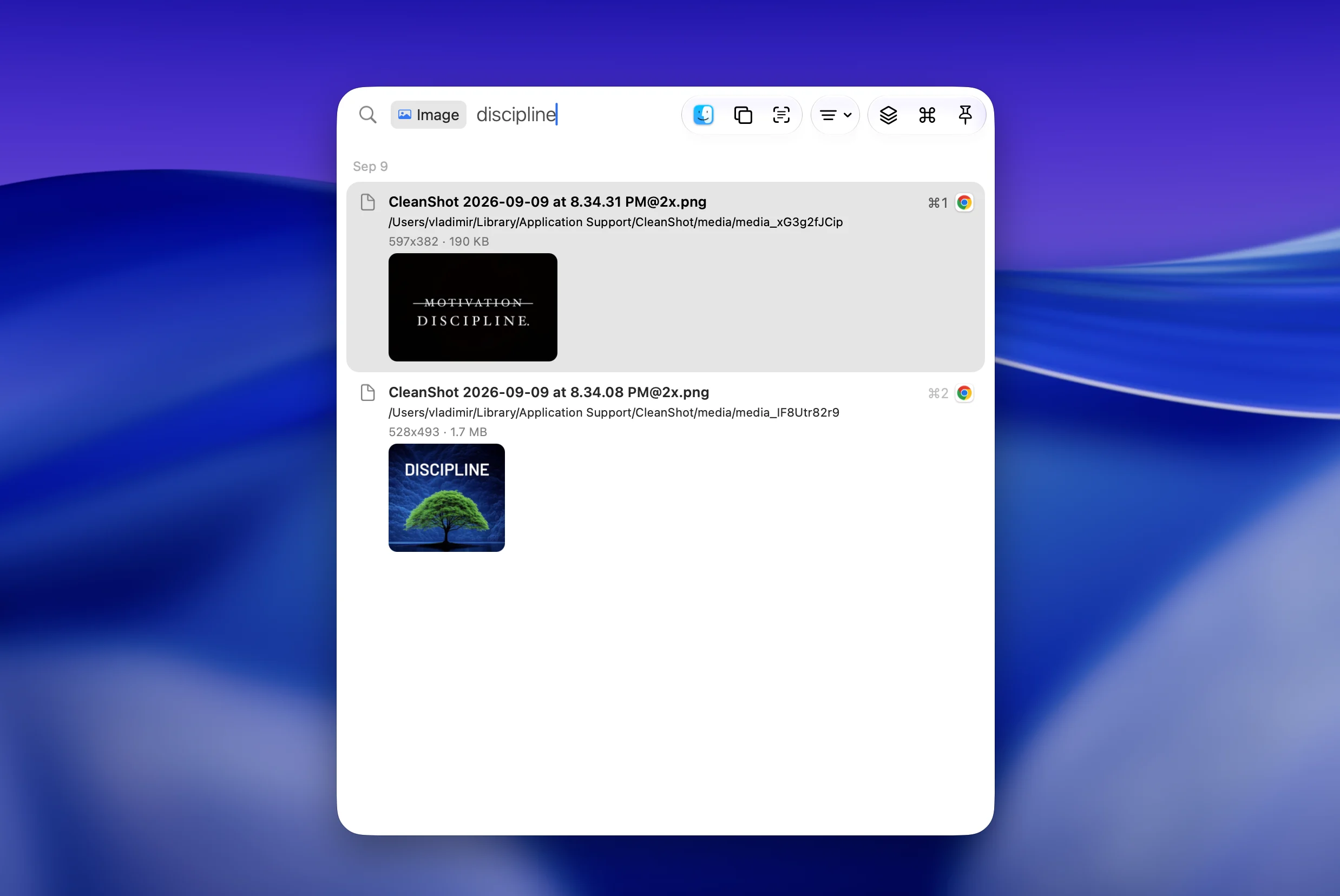
Filter by source app
You don’t remember the words, but you remember you copied it from Slack. In ClipBook that’s a filter, and the search field suggests it as you type.
Sequential paste
Copy five things in a row, switch to the other app, and paste them one after another with ⌃V without opening any window. Or select them all and paste them at once, with a separator of your choice.
When the Tahoe clipboard is enough
To be fair to Apple, the built-in history is the right answer for a lot of people:
- You copy and paste a few times a day, mostly within the same hour.
- You never copy passwords or keys outside of Apple’s Passwords app.
- You don’t share your screen, or you don’t mind clearing the history before you do.
- You’ve never wished you could find “that thing I copied last Tuesday”.
If that’s you, turn it on, set it to 7 days, and enjoy it. It’s free and it’s already installed.
If you nodded at any of the five sections above, you’ve outgrown it. Windows users have had a proper clipboard history since 2018 and it still didn’t kill the clipboard manager category, for the same reasons.
FAQ
Why is Mac clipboard history only 8 hours?
Eight hours was the only retention period in the first release of macOS 26 Tahoe. Since macOS 26.1 you can pick 30 minutes, 8 hours or 7 days in System Settings → Spotlight. There is no “keep forever” option and no way to pin an individual item, so 7 days is the hard ceiling.
Why is my macOS clipboard history not saving some items?
The most common reasons are that the item expired, the feature wasn’t enabled yet, the text was rich text or very long, the copy came from Apple’s Passwords app or from Universal Clipboard, or the Mac was restarted. See the list above for the full list.
Does the Tahoe clipboard history save passwords?
Yes, unless they were copied from Apple’s Passwords app or the source app explicitly marks the copy as concealed. Passwords from other apps are stored and displayed in plain text, and are visible during screen sharing and screen recording. If you rely on the feature, set retention to 30 minutes and clear the history before calls, or use a clipboard manager that can ignore your password manager.
How do I turn off clipboard history in macOS Tahoe?
Open System Settings → Spotlight, scroll to the bottom, and switch off Results from Clipboard (called Clipboard Search in some builds). The Clear Clipboard History button next to it wipes what’s already stored.
Can I use ClipBook alongside the Tahoe clipboard history?
Yes. They don’t interfere with each other. Most people who install ClipBook end up turning the Spotlight one off, though, because there’s no reason to keep a second, shorter and less private copy of the same history.
ClipBook is free to try for 5 days with every feature unlocked, and a lifetime license is a one-time purchase. If you have questions about how it compares with the built-in history, the pricing page has a full comparison table.
Sources
- Apple, Search your Clipboard history in Spotlight on Mac
- MacRumors, Apple Expands Spotlight Clipboard Settings in macOS Tahoe 26.1
- Ntiva, macOS Tahoe - Disable Clipboard History in Spotlight
- MacMost, How To Use the Spotlight Clipboard History In macOS Tahoe
- DEV Community, macOS Tahoe has built-in clipboard history: here’s what it’s still missing