How to hide ClipBook during screen sharing
ClipBook hides its windows during screen sharing, so nobody on a call can see what you copied. The history window, preview and Command Palette stay visible on your screen as usual, but they are left out of screen shares, screen recordings and screenshots.
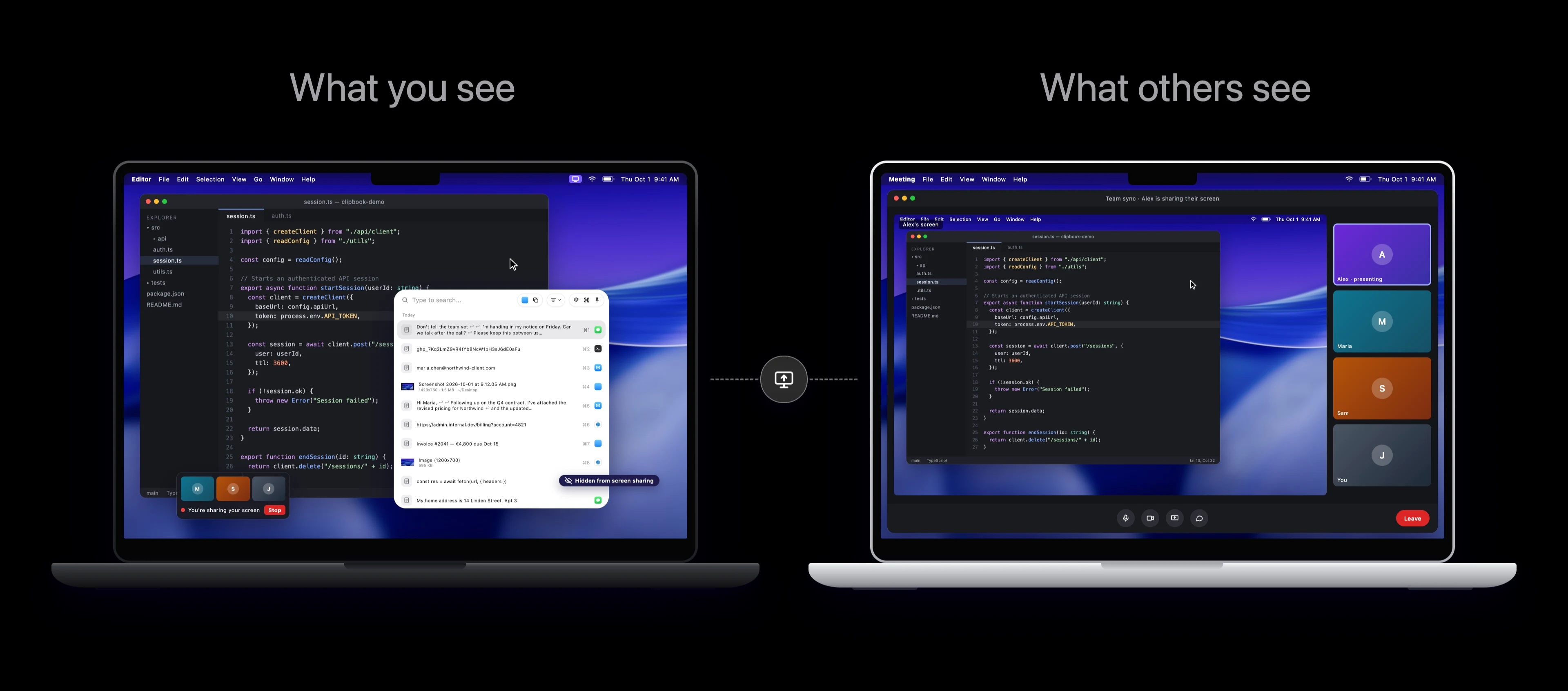
This behavior is enabled by default. You don’t need to close ClipBook before you start sharing your screen.
Show ClipBook during screen sharing
Sometimes you need ClipBook to be visible to others, for example, when you record a tutorial or show your workflow to a teammate. To show ClipBook during screen sharing and recordings, follow these steps:
- Go to Settings → Privacy.
- Enable the Show during screen sharing and recordings option.
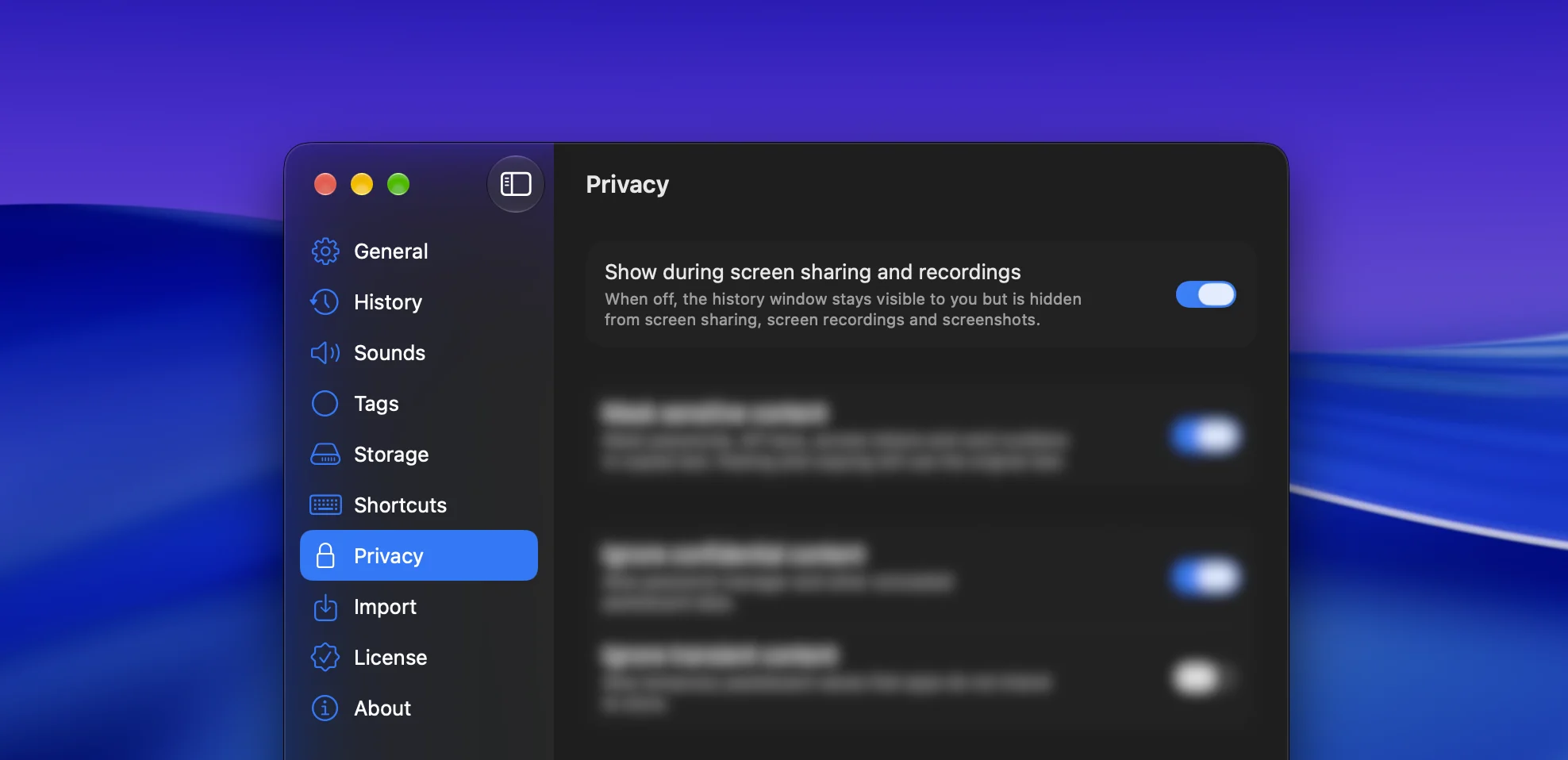
To hide ClipBook during screen sharing again, disable this option.
This feature is available in ClipBook 2.3.0 and later.