How to show item in history
When you search your clipboard history or apply a filter, the list shows only the matching items. Sometimes you need to see what you copied right before or after one of them. The Show in History action helps with that.
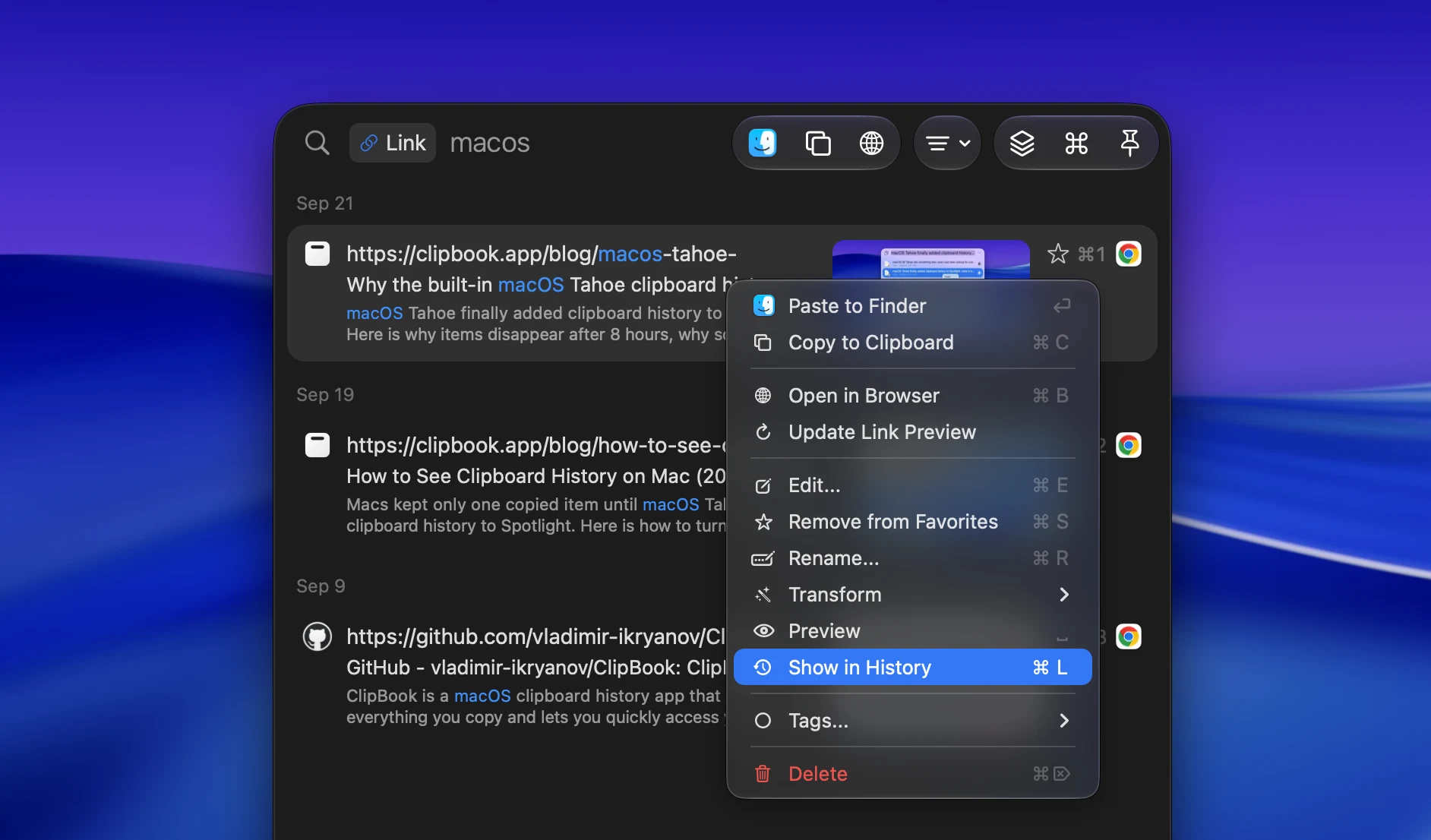
It clears the search text and filters, then selects the item in the full clipboard history. The item is scrolled to the middle of the list, so you can see the items copied before and after it. The list gets focus, so you can use the ↑ and ↓ keys to go through the neighboring items right away.
You can show an item in history in three ways:
- Right-click the item and choose Show in History.
- Open the Command Palette by pressing ⌘K and choose Show in History.
- Select the item and press ⌘L.
The Show in History action is available only while a search or filter is active.
You can change the default keyboard shortcut in Settings → Shortcuts → Item actions.